
A practical InboxCabin productivity guide · Updated October 2026
Context switching is not just the time spent clicking between windows. It is the mental work of remembering why you opened a tab, finding the right account, and rebuilding your place after an interruption. Email is a frequent trigger because new messages constantly compete for attention.
Many workers mix email, research, documents, dashboards, and chat in one browser with dozens of tabs. When a notification comes in, the browser becomes both the source of interruption and the place they are trying to do focused work.
The right test is not whether a workflow looks neat in a screenshot. It is whether you can find the right account and take the right action without searching or second-guessing.

Try InboxCabin free for 30 days. No credit card required.
 Start Free Trial
Why an email tab breaks concentration
Before choosing a tool, map where the information goes after you open it. That map exposes whether the bottleneck is visibility, a missing deadline, or confused account ownership.
The first diagnostic question is whether your next action is visible without searching. For this topic, begin with: separate communication from production. That gives you a concrete place to test the change rather than relying on an impression that the inbox feels busy.
In a busy office, a habit that works only when you have spare attention is not strong enough. Build a process that still makes sense when you are interrupted.
Create separate spaces for messages and production
Start with the smallest version of the process. Test it on the accounts that matter most before changing everything at once.
1. Separate communication from production
Decide which windows are for reading/responding and which are for writing, analysis, or creation.
Write the decision down in one line. If a coworker were covering your inbox tomorrow, they should be able to tell what the rule means without asking you to interpret it.
2. Reduce overlapping entry points
Stop keeping four copies of the same Gmail account in different tabs or profiles unless there is a deliberate reason.
Use clear names and a visible status rather than relying on memory. A clever system that is hard to explain becomes unreliable as soon as the day gets busy.
3. Build a clear switch ritual
Finish a small unit of work, open email, process the correct account, and return. Avoid half-writing a reply while scanning unrelated pages.
Run one test with a real but non-sensitive message before you declare this step complete. Provider settings, company policies, and account permissions may affect the result.
4. Use Windows layout tools
Snap Layouts and virtual desktops can help organize windows, but keep the configuration simple enough to remember tomorrow.
After two days, look for exceptions. If the rule feels awkward in ordinary work, simplify it rather than building another layer of special cases.
Example: proposals without tab hunting
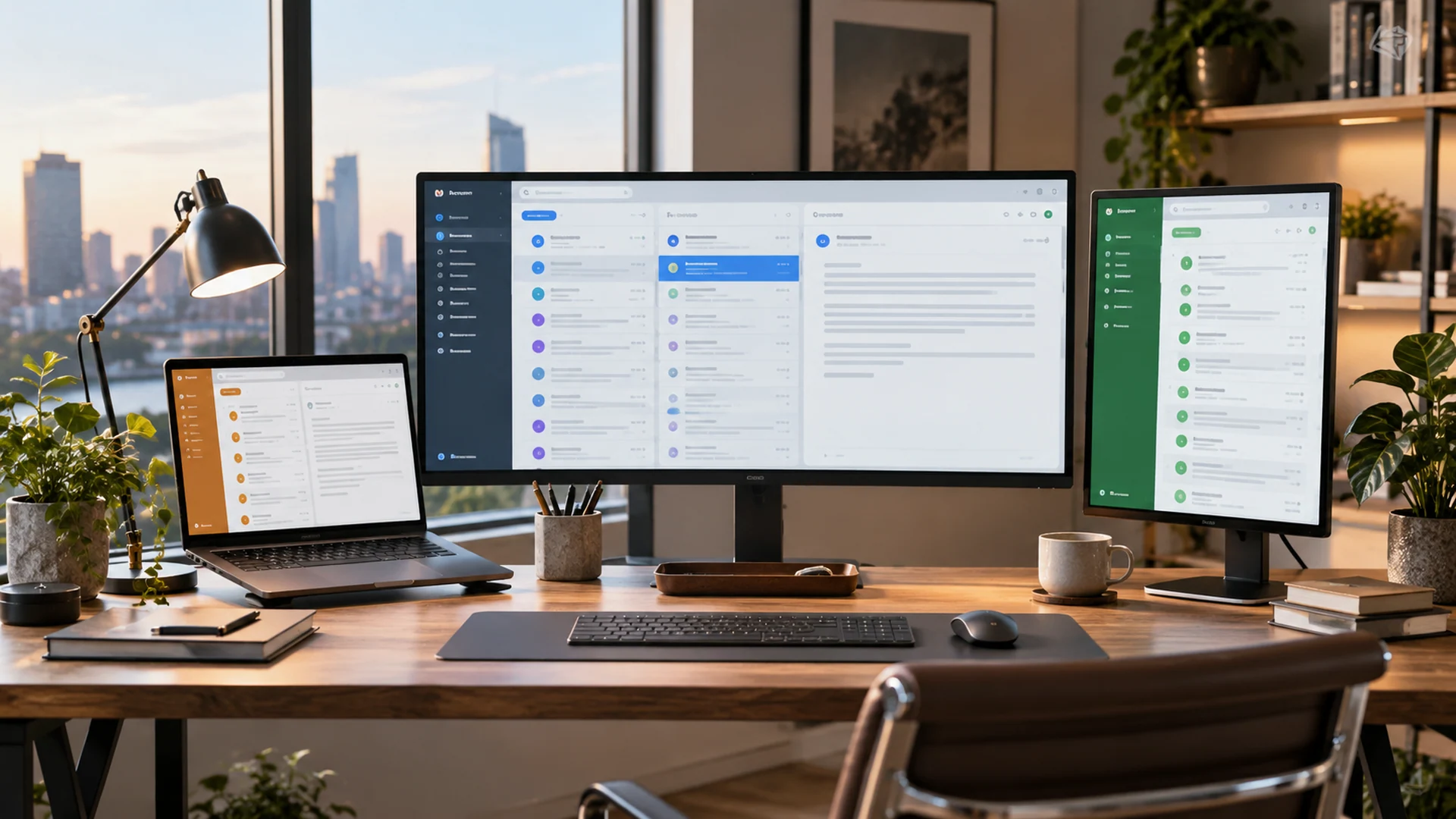
A consultant leaves research and proposals in her preferred browser while maintaining a dedicated email workspace on the side. During a proposal block, she keeps email minimized. During a communication block, she opens the email window, processes accounts deliberately, then returns to research without hunting through browser tabs.
No customer performance claim is being made here. The workflow simply demonstrates how one clear rule can replace several distracting small decisions.
The routine should protect the transition back to real work. Before closing the inbox, note the next action and owner for anything incomplete; then move on deliberately.

Context-switching fixes that become distractions
These are the failure points worth checking before you roll the method out to every account.
-
A second screen can increase distraction if it displays constantly moving inboxes.
-
Switching tools alone will not fix notifications that interrupt every five minutes.
-
Do not claim that a desktop email app eliminates web technology; the important distinction is workflow separation.
It is possible to clear the inbox and still forget the work. Treat the underlying decision as more important than the visual state of the mail list.
Make the system reliable, not merely tidy
Try a task-log experiment: note the number of times you unexpectedly leave a primary task to inspect email. A workflow is improving when you can return to the task without searching for lost context. Window placement is a means, not a performance metric.
Use a task or document system authorized for the type of information involved. Email organization can support the workflow but cannot override privacy or records rules.
For official feature details, see the provider documentation. Steps can differ by version, organization, and device, so verify what appears in your own account before publishing a company-wide procedure.
A ten-day test: measure what changes
Track interrupted deep-work blocks and number of browser tabs related to email. Also note whether sending-from-the-wrong-account mistakes decrease.
Do not redesign every mailbox on the first day. Measure the current friction, try one rule, and extend the experiment only when it is clearly helping.
If the results are unclear, keep the strongest one or two habits and abandon the rest. Productivity advice should earn its place by making real work easier.
Where InboxCabin fits—and what it does not do
A dedicated desktop environment can make multiple Gmail and Microsoft accounts easier to navigate. InboxCabin addresses that layout problem while leaving message processing to the webmail providers.
InboxCabin does not replace provider-native functions such as Gmail filters, Outlook flags, scheduled sending, or Windows notification settings. It does not bypass authentication, company policy, or multifactor checks. Use those official tools for the underlying message behavior, and a clean workspace for the act of managing several accounts.
For related setup guidance, see managing five or more email accounts and avoiding wrong-account replies. Explore InboxCabin’s Windows email workspace to keep those accounts within reach.
The takeaway
Your inbox needs rules that survive real interruptions. Focus on one recurring problem, test a modest correction, and adjust with evidence.
When the inbox is no longer the place where every task, reminder, and interruption competes equally, more of your attention goes toward the work you actually meant to do.
Try InboxCabin free for 30 days. No credit card required.