
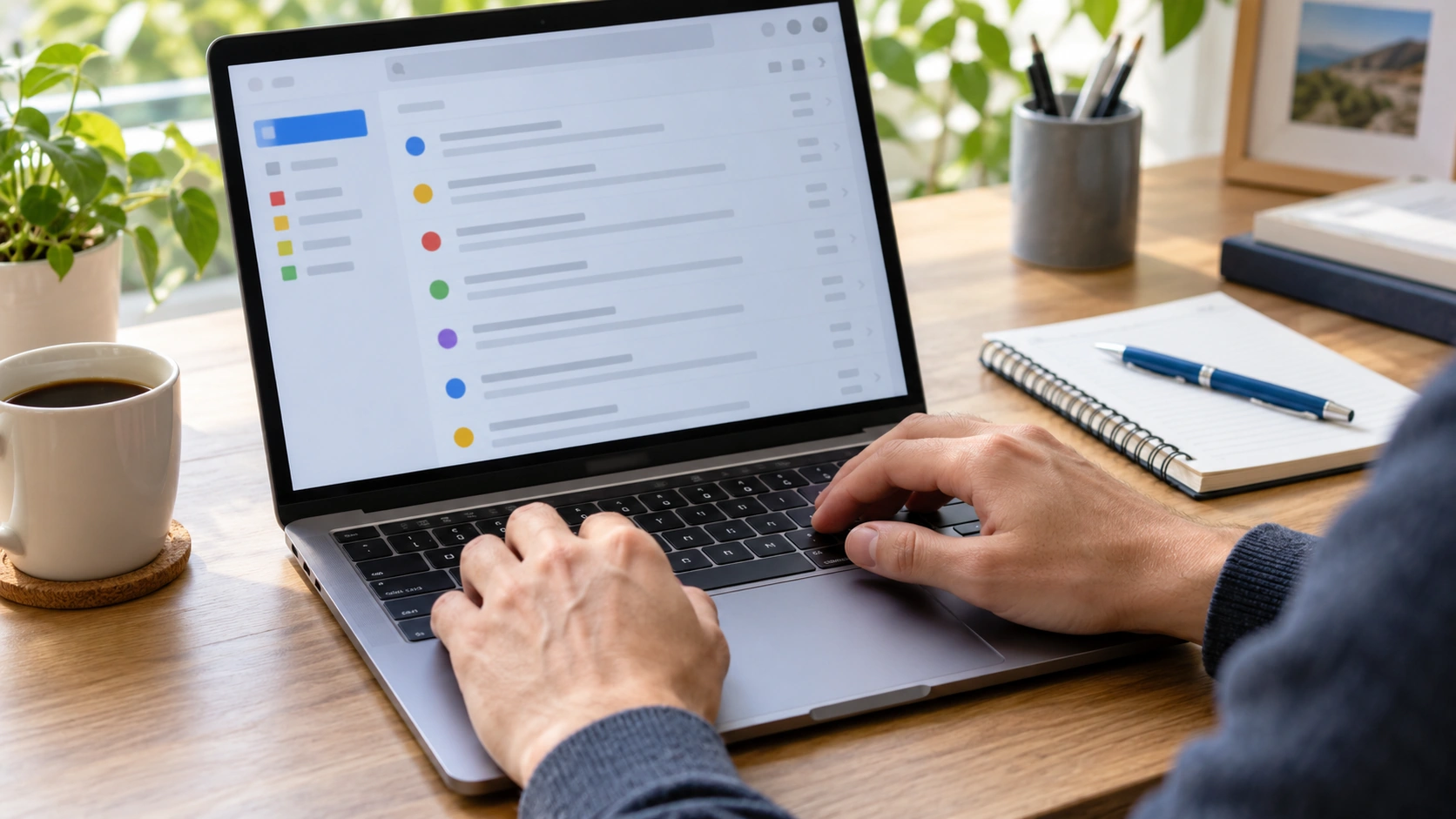
You open an email, type a thoughtful reply, press Send—and only then notice that it went out from your personal address instead of your company account. If you manage several Gmail or Outlook inboxes, you probably know how easily this can happen. The mistake can be merely awkward, or it can create a real professional problem.
The good news is that most wrong-account emails are preventable. You do not need a complicated automation system. You need better visual separation, a consistent process for composing messages and a few habits that make the active sender impossible to ignore.
Try InboxCabin free for 30 days. No credit card required.
 Start Free Trial
Why wrong-account emails happen
The problem usually starts with context switching. You are halfway through a project, a message arrives from another organization, and you answer without fully changing mental gears. When several accounts are open in similar-looking tabs, it is easy to assume you are in the correct mailbox.
Aliases can add confusion. A single Gmail or Outlook interface may allow you to send from more than one address, depending on account permissions. Even when your mailbox is correct, the selected From address may not be what you expect. That creates two decisions to check: which account is open, and which address is sending.
The risk grows when you handle unrelated companies, clients or roles. If all of your inboxes use similar profile pictures, neutral window titles and identical signatures, your brain receives very few signals that something has changed. Small improvements to those signals can make a big difference.
Make each mailbox visually unmistakable
Start with labels. Use a clear business or role name in the navigation, not just “Gmail,” “Outlook” or an abbreviated domain. Labels such as “Consulting Sales,” “Rental Operations” and “Personal Gmail” tell you immediately where you are.
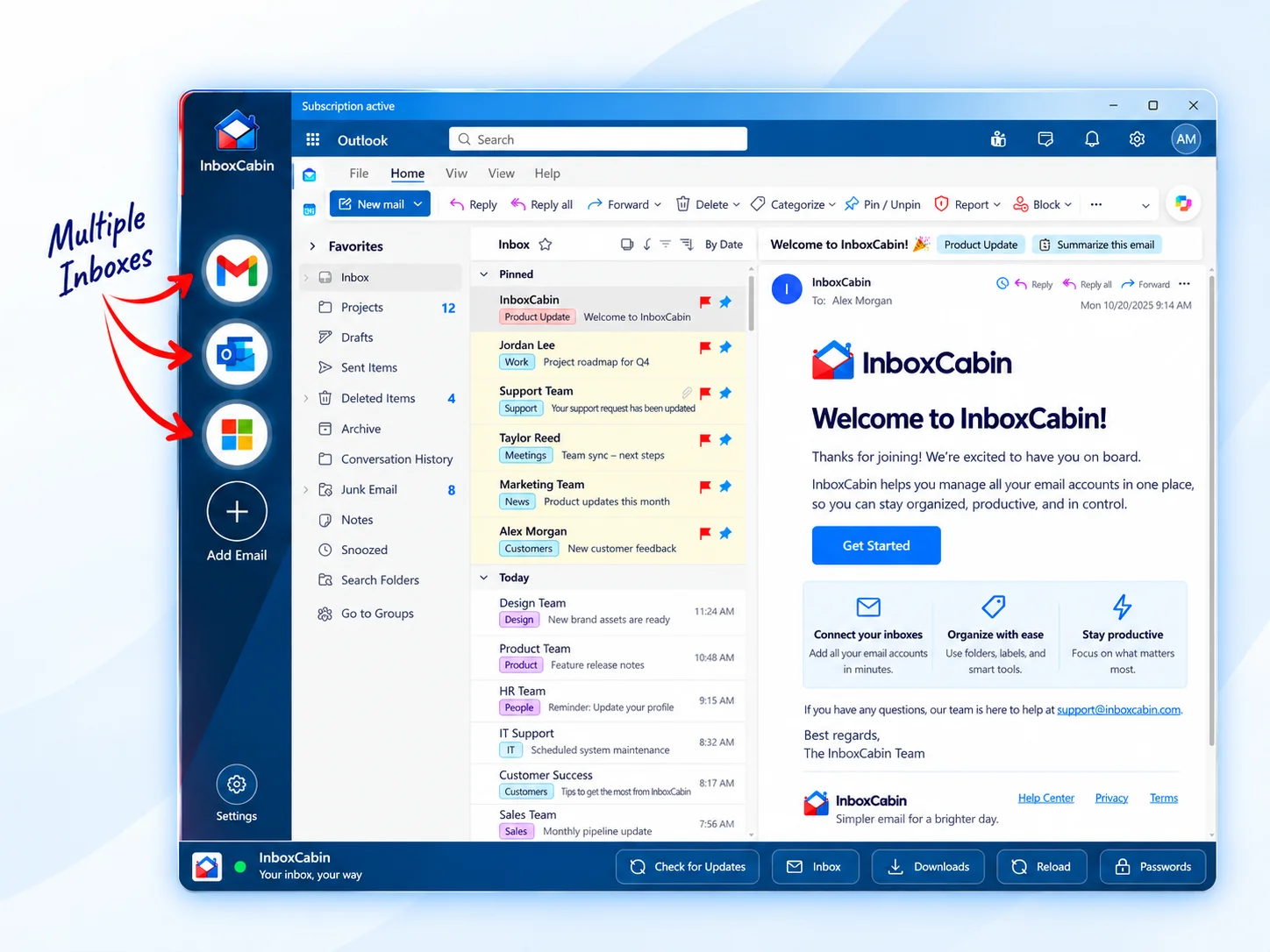
Next, use different profile pictures or colors when your software allows them. You do not need a beautiful design system; you need visual contrast. A blue circle, red brand icon and green initial are easier to distinguish quickly than three almost-identical grey avatars.
If you manage email in a dedicated desktop app like InboxCabin, the left-hand sidebar can make those identities visible together. That alone will not prevent every mistake, but it reduces the need to remember which hidden browser window corresponds to which address. The design should help you identify the active mailbox before you type.
Check the From address before sensitive messages
Make this the nonnegotiable habit: glance at the sender address before sending anything that relates to money, customers, contracts or confidential information. It takes a moment, and that moment is worth more than the time spent correcting an avoidable mistake.
Microsoft explains how to show and choose the From line in Outlook.com. Google also provides instructions for sending mail from another address or alias where supported. Read the guidance for your exact account type, because personal, business and organization-managed settings can differ. Google has announced that third-party-address “Send as” support in Gmail will end in January 2027; that does not affect every Google Workspace or Gmail alias scenario.
If the message is particularly sensitive, check the recipient list too. Reply All and autocomplete mistakes are a separate hazard. Confirm both ends of the message: who receives it and who appears to have sent it.
For a practical next step, see how to organize five or more email accounts.
30-day free trial. No credit card required.

Separate composition from inbox triage
A small workflow improvement is to avoid composing important messages while rapidly bouncing among accounts. Do a quick triage pass first, then return to the correct inbox to write longer responses. This reduces the chance that the mental context from the previous mailbox carries into your draft.
For messages that need significant thought, start a fresh draft in the relevant account rather than replying from an email notification or a browser tab whose context you have not checked. When possible, use the same dedicated email workspace every day, so the location of each account becomes familiar.
Also pay attention when forwarding. If a client thread begins in one business account but is forwarded into a personal mailbox for convenience, a later reply from the wrong place becomes more likely. Keep business threads in their original environments whenever practical.
Keep signatures distinct and appropriate
A strong signature helps recipients understand who is writing. It also gives you a second reminder of the identity you are using. Create different signatures for different companies, with names, roles and contact details that match the account.
However, do not rely exclusively on the signature as a warning. Some clients insert a signature only after you finish composing, and some users remove signatures from replies. The actual From line remains the final authority. Verify it before sending.
If your email provider supports a default sender setting, review it periodically. An alias or connected address added months ago can become the default unexpectedly from the user’s perspective, even if the software is behaving as configured. Understanding the setting is part of preventing errors.
What to do if you already sent the wrong email
First, assess the impact. Was it merely a harmless message from an unexpected address, or did it expose confidential details? If it was harmless, a brief correction from the correct account may be enough. Do not create more confusion with a lengthy explanation.
If sensitive information was involved, follow your organization’s incident process promptly. Do not assume a message can be recalled everywhere just because one email client offers an Undo Send or Recall feature. Those functions have limitations, and once a recipient has access to a message, there is no universal guarantee of recovery.
Use the event as a process improvement: change ambiguous icons, reorganize account labels or add a deliberate sender-check step for sensitive correspondence.
The simplest protection is clarity
You do not need to stop using multiple email accounts. You need a setup where each account’s identity is clear and a routine that includes checking the sender before the message leaves your computer.
If browser tabs and profiles are making that harder, download InboxCabin and try keeping your Gmail and Outlook inboxes in one dedicated Windows sidebar. A focused workspace can reduce one source of confusion while preserving the separate email identities you rely on.
Try InboxCabin free for 30 days. No credit card required.
Start Free TrialWant more background? Read our introduction to InboxCabin.