

Running several businesses often means running several email identities. You might have a personal Gmail, a primary company Outlook inbox, a support mailbox, a property-management address and an account for a new project. Every address has a reason to exist, but checking them all can quietly become one of the most irritating parts of your day.
The solution is not necessarily to merge everything into one inbox. For many owners, those separate identities matter. The challenge is to keep them distinct while making it easy to move between them and recognize where a message belongs. Here is a practical system for doing that without turning email into a full-time job.

Try InboxCabin free for 30 days. No credit card required.
 Start Free Trial
Give every account a clear job
Before you change software, write down every inbox you actively use. Next to each address, identify its purpose: customer sales, administrative work, billing, support, personal communication or a side venture. If an address does not have a clear purpose, ask whether you need to check it daily.
This small exercise helps more than expected. A business owner often treats all inboxes as equally important simply because they exist. In reality, a high-value sales inbox and an old newsletter address probably deserve different attention. Give each one a role, and decide how urgently it must be monitored.
Avoid labels that only make sense when you are looking at the full address. “Primary Sales,” “Property Operations,” and “Personal” are easier to identify than three accounts all labeled “Gmail” or “Outlook.” If your email application supports icons, make them visually distinct as well.
Keep business identities separate without losing control
Combining messages from different businesses can feel efficient until you send a reply from the wrong identity, search the wrong mailbox or accidentally bring a client conversation into a personal thread. Separate inboxes preserve context. You can still manage them in one workspace without merging the underlying correspondence.
This is especially useful for business owners who oversee multiple entities. A customer writing to your consulting company should not experience the same workflow as a tenant contacting your rental business. The messages may arrive on the same computer, but they belong to different relationships and sometimes different operational processes.
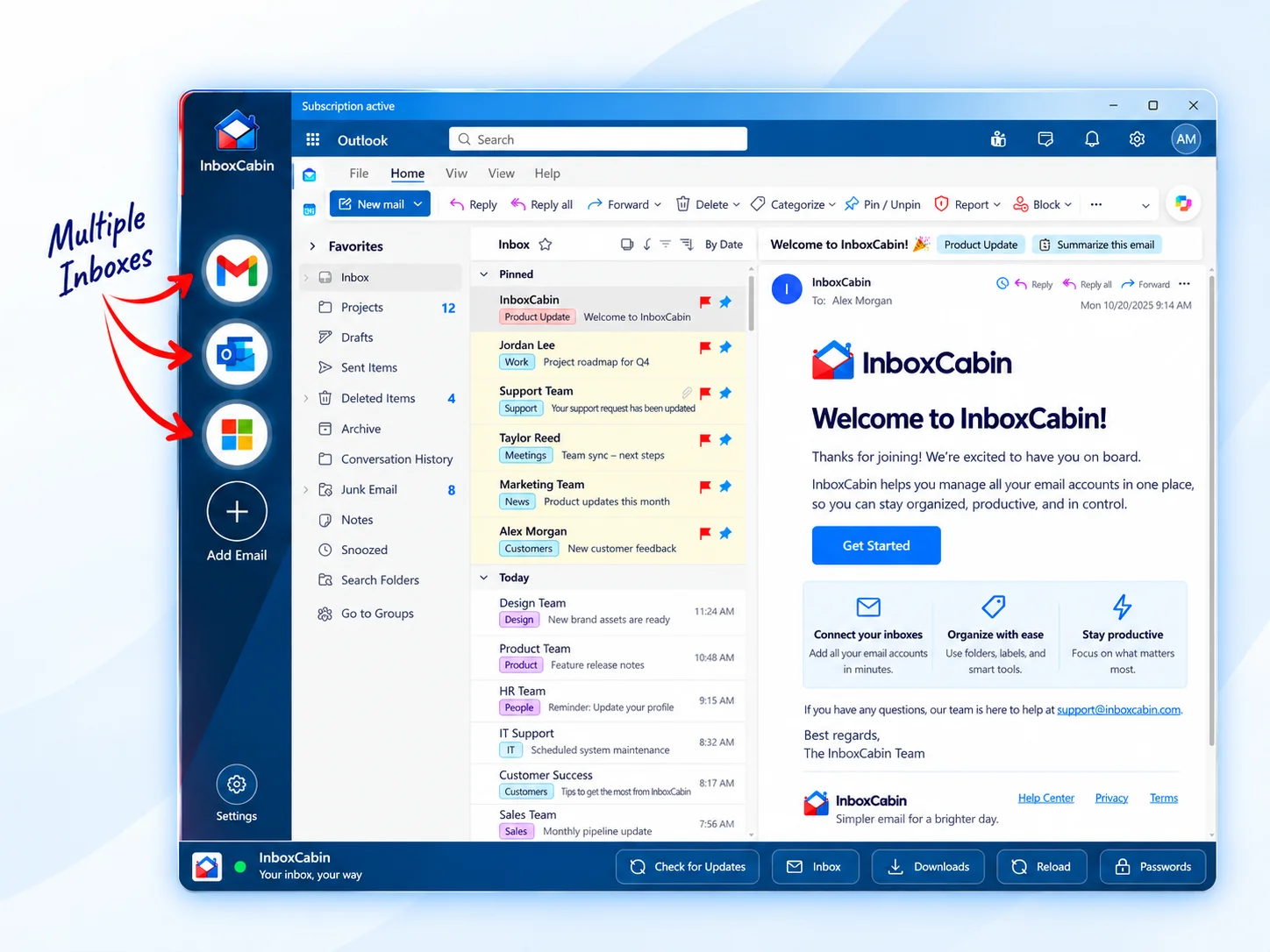
A dedicated multi-inbox app is one way to preserve this separation. InboxCabin puts Gmail and Microsoft accounts in one Windows desktop sidebar while allowing each account to keep its familiar provider interface. The point is to make switching simple, not to erase the distinctions between businesses.
Create an order for checking your inboxes
A useful routine starts with prioritization. Begin with the mailbox that has the highest chance of containing time-sensitive customer or revenue opportunities. Move to the second-most important account, then the lower-priority ones. Do this in roughly the same order each day.
For example, a business owner might start with sales inquiries, check customer support next, then administrative mail, then a separate property account, and finally personal email. The exact order matters less than the habit. Once the sequence becomes familiar, you stop wondering whether you have forgotten an inbox.
You can also separate urgent and nonurgent checks. One or two inboxes may require regular attention. Others may be fine with scheduled reviews at lunchtime and late afternoon. That prevents the least-important account from interrupting the most-important work.
For a practical next step, see how to avoid sending email from the wrong account.
30-day free trial. No credit card required.

Reduce the friction of account switching
If you manage five or more email accounts inside a normal browser, the software itself can become part of the problem. You may have several profile windows, tabs, account switchers or shortcuts. Each works, but the number of steps adds up when you repeat them dozens of times daily.
A dedicated desktop workspace changes the navigation model. Instead of hunting through browser contexts, you choose the mailbox from a persistent sidebar. That is the core InboxCabin experience: Gmail and Outlook in one dedicated Windows application, with the rest of your browser left free for CRM systems, research and other tasks.
Be realistic about what this does and does not accomplish. The app does not make Gmail and Outlook one merged mailbox, and Google or Microsoft can still ask for sign-in or multifactor verification. The benefit is the consistent place from which you access each account.
Build a short triage routine
When you open an inbox, decide what a message needs before you start reading every thread. A useful four-way system is: respond now, schedule a response, delegate, or archive. For messages that require substantial work, create a task or a calendar reminder rather than relying on the unread state as a memory aid.
Do not treat the inbox as a permanent to-do list. Unread counts often measure how much mail has arrived, not how much important work remains. If you use flags, categories or labels, reserve them for specific reasons. Too many labels create another system you must manage.
Consider a simple end-of-day review: look for unanswered customer messages, confirm that delegated items were assigned, and check that no high-priority inbox was skipped. Ten deliberate minutes can be more useful than dozens of reactive checks scattered throughout the evening.
Avoid the wrong-account problem
One of the biggest risks with multiple email identities is sending a message from the wrong address. This can be embarrassing or confusing and, in certain professional settings, may expose information to the wrong audience. A clear label helps, but habits matter too.
Before hitting Send on sensitive messages, glance at the active mailbox and the From field. In Outlook.com, Microsoft documents how to select a different sender address when that feature is available. Gmail also supports sending from authorized aliases in some configurations. Familiarize yourself with how your particular accounts handle those options.
Use signatures appropriate to each business and avoid copying text from one company’s messages into another company’s communications unless that is intentional. The goal is less mental load with no loss of professionalism.
One workspace, several businesses, less noise
Five email accounts do not have to mean five separate daily workflows. Give each address a job, establish priorities, keep identities distinct, and make navigation straightforward. The best system is one that works on a busy Tuesday without requiring constant attention to the software itself.
If switching among Gmail and Microsoft inboxes is the part that slows you down, try InboxCabin. Its focused desktop design is intended to reduce one recurring annoyance while letting you keep the separate addresses your businesses actually need.
Try InboxCabin free for 30 days. No credit card required.
Start Free TrialWant more background? Read our introduction to InboxCabin.