
If you use several Gmail and Outlook accounts, staying signed in is convenient. It removes the friction of entering passwords repeatedly and makes it easier to move between work, personal and business email during the day. But convenience always raises a security question: is it a bad idea to leave multiple inboxes open on the same computer?
The realistic answer is that persistent sign-in can be reasonable on a properly protected personal or work device, but it increases the importance of protecting that device. Account security depends on more than whether you sign out after every session. Passwords, multifactor authentication, operating-system access and the way applications store local session data all matter.

Try InboxCabin free for 30 days. No credit card required.
 Start Free Trial
What staying signed in actually means
When you sign into a webmail service, the provider may store cookies or other session information so it can recognize your browser or application without demanding a password on every visit. A desktop application displaying Gmail or Outlook can use a similar session mechanism inside its embedded webview.
That does not mean the email provider has permanently waived verification. Google and Microsoft may ask for another sign-in or an additional authentication factor after certain security events, on a new computer, or when organizational policies require it. Google’s two-step verification guidance explains why a new device or unusual sign-in can trigger additional checks.
A familiar login that remains active is convenient, but it should not be mistaken for a security feature on its own. The safety comes from who can access the device and what controls protect the account.
The biggest risk is often the computer itself
If someone gains access to your unlocked computer, they may not need your email password to read an inbox that is already signed in. This is true of browser tabs, Chrome profiles and desktop applications alike. A separate email app does not create a magical barrier if the operating-system session is already compromised.
Use a strong Windows sign-in method, enable automatic screen locking, install security updates and avoid leaving devices unlocked in shared spaces. A dedicated work computer can also have stronger protections through IT policy, device encryption and endpoint security software.
Be particularly careful on borrowed or public machines. Persistent sessions are designed for convenience on devices you control, not as a reason to trust an unfamiliar computer. If you must sign in on another person’s device, use the provider’s recommended sign-out procedures when finished.
Enable strong authentication on every account
Each Gmail and Microsoft account is a separate identity and deserves its own protection. Use unique passwords and enable multifactor authentication or a passkey where supported. If an organization requires a specific authenticator, security key or device policy, follow that requirement rather than trying to work around it.
Do not assume that one secure account makes the rest secure. An older secondary mailbox could become the weak link, especially if it is used for password resets or still receives sensitive messages. Review recovery options and account activity periodically for addresses you rarely check.
If you save passwords locally, understand where they are stored. A browser-managed password store, a dedicated password manager and an application’s own credential store can have different export and recovery behavior. Choose a method whose security model you understand, and do not share recovery keys casually.
For a practical next step, see how to use Gmail and Outlook together on Windows.
30-day free trial. No credit card required.

Are separate email sessions better than one combined session?
Separate sessions can reduce confusion and help keep work and personal identities distinct. For someone using a Gmail account, a Microsoft 365 account and several other addresses, clarity is valuable. You should be able to tell which account is open and avoid accidentally composing from the wrong identity.
But session separation is not a replacement for account security. If your computer is compromised, multiple sessions may all be exposed. A browser profile or desktop mailbox container can organize identities without providing the isolation of a fully separate operating-system user account or managed device.
In other words, organize your inboxes for usability while securing the underlying accounts and computer independently. Both jobs matter.
How InboxCabin approaches persistent logins
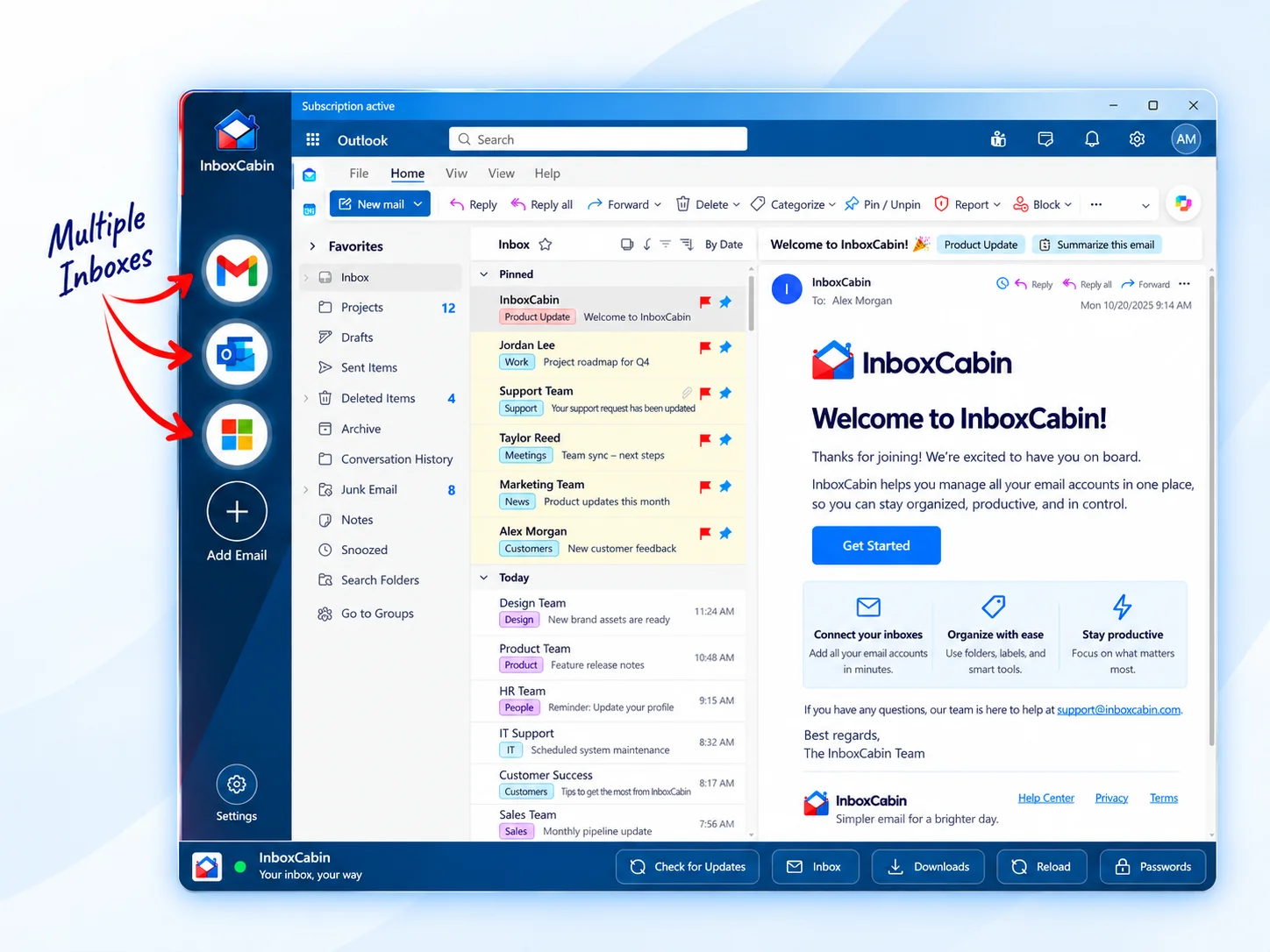
InboxCabin is a Windows desktop app intended to keep Gmail and Microsoft inboxes easy to access from a dedicated workspace. The product focuses on displaying each provider’s familiar webmail interface in its own mailbox context rather than combining all messages into a new shared inbox.
As with other desktop applications that use web-based email, provider authentication rules still apply. You may have to sign in again after a security challenge, especially on a different computer. The ability to keep a mailbox readily accessible does not mean InboxCabin can override Google or Microsoft security controls.
For privacy-conscious buyers, one useful question is what happens to saved credentials and session data. Passwords saved locally should stay under appropriate device protection, and the product should not be described as having a central password vault unless that is actually part of its architecture. Review the application’s published privacy information and choose settings appropriate to your environment.
A practical security checklist
Before you leave multiple inboxes signed in, check five things. First, is the computer yours or a properly managed work device? Second, does Windows lock automatically when you step away? Third, are all the email accounts protected with unique credentials and appropriate second factors? Fourth, are operating-system and application updates current? Fifth, do you know how to revoke sessions or remove a lost device if needed?
Also think about who else uses the machine. If family members or coworkers share it, separate Windows user accounts may be more appropriate than letting everyone use one signed-in desktop. For regulated or company-managed mailboxes, confirm the security policy before adding them to any third-party application.
You do not need to make every inbox difficult to access in order to be secure. But you do need a realistic understanding of the device and account protections surrounding persistent access.
Convenience and security can coexist
Persistent sign-in is useful because email is a frequent task. The safer approach is not necessarily to sign out of every mailbox after every reply. It is to protect the computer, secure each account, and respect provider and employer authentication requirements.
If you want a clearer way to manage multiple Gmail and Microsoft inboxes on Windows, try InboxCabin. Its dedicated desktop layout can simplify switching while the security protections on your accounts and devices continue to do their jobs.
Try InboxCabin free for 30 days. No credit card required.
Start Free TrialWant more background? Read our introduction to InboxCabin.