

Many professionals live in two email worlds. A personal Gmail account may be their default, while a company or client operates on Microsoft 365. Add a second business, a shared support address or a side project, and suddenly there are four inboxes to check and no obvious single workflow.
The good news is that you have several legitimate options on Windows. The best one depends on whether you want messages consolidated into a new email client, kept separate through browser profiles, or displayed in one dedicated desktop workspace with the familiar Gmail and Outlook interfaces intact.
Try InboxCabin free for 30 days. No credit card required.
 Start Free Trial
Start by deciding whether you want one inbox or one workspace
A unified inbox combines mail from different accounts into one message list. That can be helpful if you want to process everything by date, but it also introduces questions about which account sends replies and how account-specific settings behave. A shared workspace is different: it lets you access several distinct inboxes from one application without merging the underlying messages.
That distinction is easy to miss in software marketing. If you want Gmail and Outlook to continue looking and behaving like Gmail and Outlook, a workspace model may be more comfortable. If you prefer one new interface with mail synchronized from multiple providers, a conventional desktop email client may be more appropriate.
Neither is universally better. Decide before testing apps, because the setup can feel very different. InboxCabin takes the workspace route; it does not promise a combined Gmail-and-Outlook message database.
Option 1: Keep Gmail and Outlook in separate browser tabs
This is the simplest starting point. Open Gmail in one tab and Outlook on the web in another. Sign into each provider using its normal authentication flow and use the tabs as your daily entry points. On Windows, you can pin those tabs or create shortcuts to reach them quickly.
The advantages are familiarity and almost no extra software. The drawbacks appear as your account count grows. Tabs get buried among research, web apps, CRM pages and documents. Multiple Gmail accounts can also cause confusion if they share a browser session, because choosing the right identity is not always as obvious as it should be.
If you only need one Gmail account and one Outlook account, separate tabs may be enough. If you need five accounts open through the workday, the tab approach often starts feeling like an improvised solution.
Option 2: Use browser profiles for separate accounts
Chrome and Edge profiles can keep separate browsing identities and saved sign-ins. They are useful when a work account needs different bookmarks, extensions or settings from a personal account. For two or three email identities, that separation can work well.
The price you pay is navigation. Now you are switching not only between tabs but sometimes between entire browser windows or profiles. That may be fine for occasional work. It can be distracting for people who spend the day moving among mailboxes.
Remember that profiles are not an exemption from security controls. Google and Microsoft can still request verification, especially on a new device or after unusual sign-in activity. For work-managed Microsoft accounts, company policy can further restrict sign-ins. Those rules apply no matter which application displays the webmail page.
For a practical next step, see how to avoid sending email from the wrong account.
30-day free trial. No credit card required.

Option 3: Use a dedicated desktop workspace
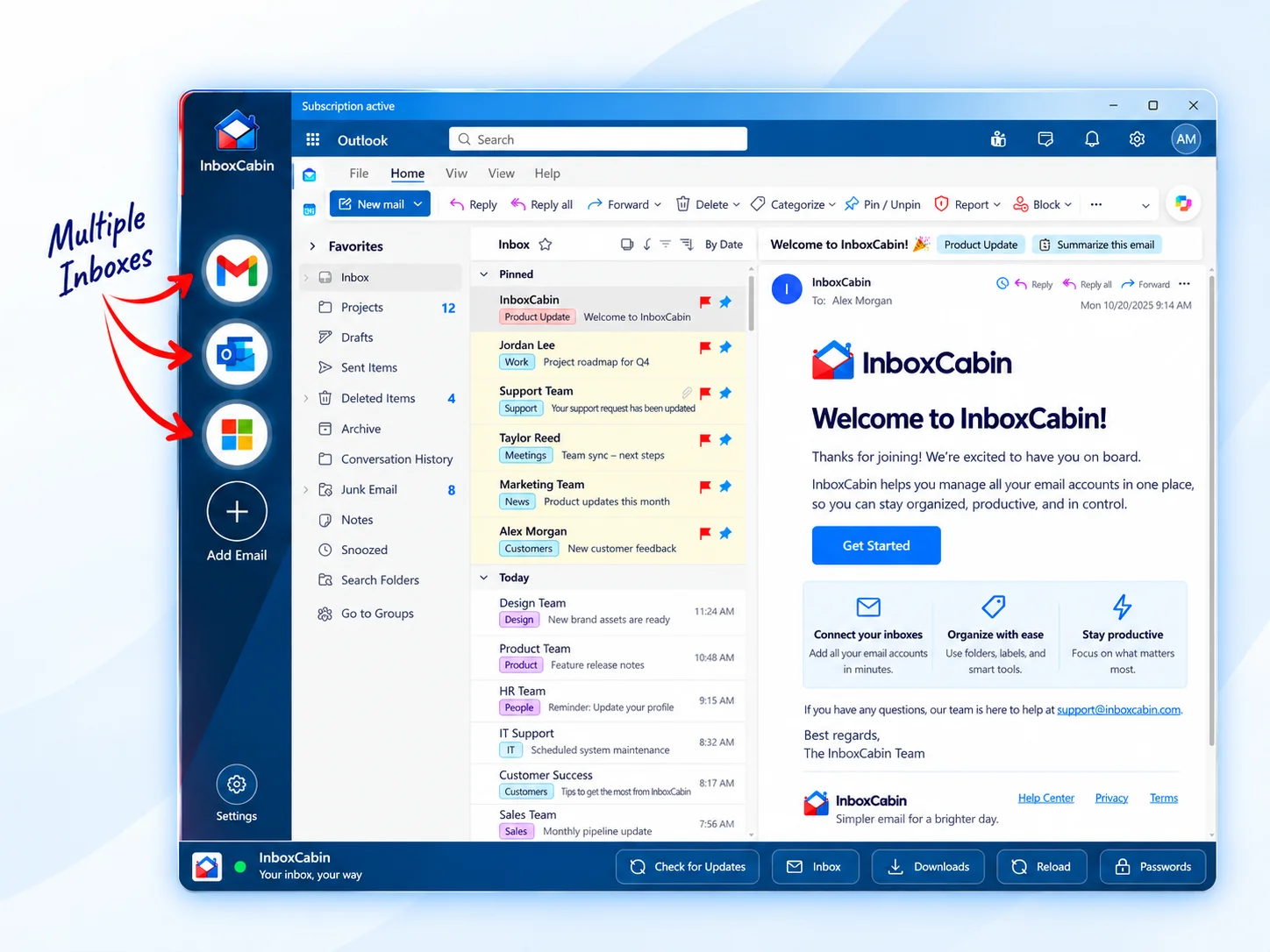
A dedicated desktop workspace gives email its own place. InboxCabin is built around this approach on Windows: add Gmail and Microsoft inboxes, keep them visible in a sidebar, and click between them without turning the entire web browser into an email dashboard.
The point is not to replace Gmail or Outlook. It is to place the familiar webmail experience in a clean desktop app, with the accounts easier to recognize and access. That means you can keep your browser for Slack, research, client software and anything else that belongs outside your inbox.
For a person managing one personal Gmail, two Microsoft business accounts and another Gmail for a project, this organization can feel immediately more natural. Each identity still matters. The app simply reduces the mental work of finding it.
Option 4: Use a conventional email client
Desktop email clients can bring messages from several services into a unified interface, often with their own search, composition and folder tools. Some people strongly prefer that approach because they want their mail interface to behave consistently across providers.
Other people dislike it because they already know Gmail and Outlook well and do not want a third design to learn. You also need to verify that your organization permits the client and that the selected program supports the accounts, authentication methods and policies you use.
An email client is a great answer for the right customer. It is simply a different answer from a multi-inbox workspace. Be clear about which one you are shopping for.
A sensible setup for mixed-provider users
Make a list of the inboxes you actually check every day. Give each account a recognizable display name, preferably tied to its purpose rather than a cryptic abbreviation. When the software supports profile pictures or icons, choose visuals that help you recognize the active account instantly.
Then adopt a short routine: check the highest-priority business account, move through secondary inboxes, and reserve lower-priority mail for a scheduled window. If you send from several addresses, pause briefly before sending to verify the active mailbox.
Microsoft documents how to choose the From address in Outlook.com, while Google provides guidance on sending from an address you own. Those instructions are useful when aliases are involved, but they do not eliminate the benefit of keeping separate mailbox identities clear. Update for 2027: Google has announced that Gmail’s “Send as” support for third-party providers will end in January 2027; Google Workspace aliases and other Gmail addresses are treated differently. Check the current Gmail policy before building a workflow around that feature.
Keep the workflow simple
You do not need to merge your email providers just to manage them conveniently. Separate tabs, browser profiles, email clients and dedicated workspaces are all legitimate solutions. The right choice depends on your account count and how you like to work.
If you want Gmail and Outlook in their familiar forms, accessed from one Windows application, try InboxCabin. The 30-day free trial gives you time to determine whether a dedicated desktop workspace saves you daily friction.
Try InboxCabin free for 30 days. No credit card required.
Start Free TrialWant more background? Read our introduction to InboxCabin.