

Google Chrome profiles are one of the easiest free ways to keep different email identities separated. Make a work profile, make a personal profile, sign into different Gmail or Microsoft accounts, and each profile can maintain its own browsing environment. For plenty of people, that is good enough.
But profile management and email management are not exactly the same job. When you switch between email accounts many times a day, repeatedly switching browser windows or profiles can become a form of friction. A dedicated email app is designed to reduce that friction, not necessarily to replace everything Chrome does well.

Try InboxCabin free for 30 days. No credit card required.
 Start Free Trial
What Chrome profiles actually do
Chrome’s official profile documentation explains that separate profiles can keep browsing history, bookmarks, passwords and other settings distinct. The feature is useful for separating personal and work identities, or for people who share a computer. You can create profiles, give them different names and icons, and move between them from Chrome’s profile selector.
That is a capable free tool. You can keep a client login separate from a personal login, avoid mixing browsing histories, and maintain different browser preferences. For some workflows, profiles are exactly the right solution. They are also built into a browser you may already use every day.
The trade-off is that each profile represents a broader browsing context. It is not primarily a purpose-built multi-email navigation. If you have seven mailboxes, creating and naming seven browser contexts can feel like a workaround rather than a clean email workspace.
When profiles are the better choice
If you manage two accounts and rarely switch between them, Chrome profiles may be all you need. The setup is familiar and costs nothing extra. Profiles can also be valuable when each identity needs its own bookmarks, extensions or broader browsing activity—not just its own email.
For example, a marketing contractor might maintain separate Chrome profiles for two clients because each client has Google Analytics, advertising accounts, project software and email under one organization. Keeping the entire client web identity separate makes sense. An email-only tool cannot replace that wider boundary.
There is a security point worth remembering: separate Chrome profiles are organizational boundaries, not a replacement for operating-system accounts or device security. Google warns that someone with access to your computer may be able to switch into other local Chrome profiles. Use screen locks and account protections regardless of your profile structure.
Where browser-profile switching becomes annoying
Now imagine someone running four business inboxes and two personal inboxes who spends much of their day answering messages. They may not need different bookmarks or web apps for every account; they simply need to check the right inbox quickly.
If email accounts are spread across browser profiles, finding the correct window can interrupt work. The browser might already be crowded with research, customer portals, spreadsheets and chat tools. Opening another profile adds still more visual clutter. Even when the technical setup works fine, the daily experience can feel unnecessarily busy.
A dedicated email app changes that arrangement. Instead of treating every mailbox as a separate browser identity, it makes your inboxes the main navigation. The browser stays for general web work. The email utility stays for email.
For a practical next step, see how to use Gmail and Outlook together on Windows.
30-day free trial. No credit card required.

What InboxCabin does differently
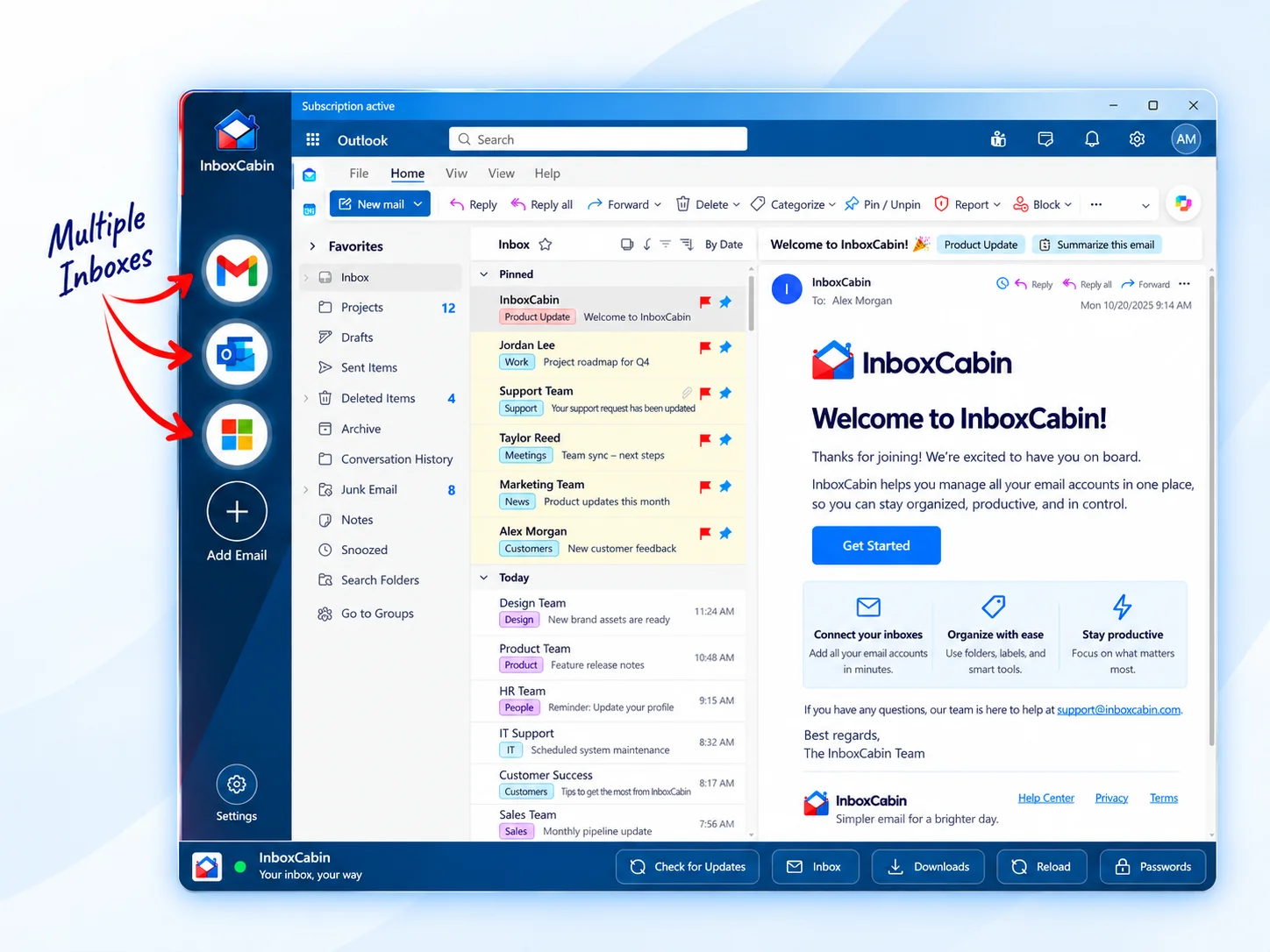
InboxCabin provides a Windows desktop space for Gmail and Microsoft inboxes. Your mailbox icons sit together in the sidebar, and you switch to the account you need. Each email provider keeps its familiar interface rather than being replaced by a new, merged message system.
The benefit is not a magical improvement to Gmail or Outlook themselves. It is the simpler container around them. For users who mainly use Chrome profiles to avoid logging in and out of several inboxes, a focused application may be a more natural fit.
If you use more than one computer, plan for separate authentication on the new device. Your providers may require security checks even when a mailbox configuration is moved over. That protects the account and should be expected, not treated as a defect in an email manager.
A five-minute comparison you can do yourself
First, count your regularly used inboxes. Ignore addresses you rarely open. If you only have two, Chrome profiles may be sufficient. If you have five or more that you check daily, a dedicated solution becomes more appealing.
Second, track how often you switch. Switching once per morning is different from switching twenty times while handling multiple businesses. Third, decide whether your browser should be the center of your communication workflow or whether you prefer email in its own window.
Finally, try both configurations with the same accounts. Measure ease of setup, clarity of labels, ability to keep accounts separated, and whether you can tell which account is active at a glance. Use the tool that reduces your real friction—not the one with the longest specification sheet.
The right answer depends on your habits
Chrome profiles are a useful, free way to separate browser identities. A dedicated email app is useful when inbox switching is the job you want to make faster. Both approaches can work, and you do not have to commit your entire digital workflow to one method.
If you want to see what email-first navigation feels like, download InboxCabin and connect your regularly used Gmail and Outlook accounts. Keep Chrome for browsing, and let InboxCabin handle the inbox switching.
Try InboxCabin free for 30 days. No credit card required.
Start Free TrialWant more background? Read our introduction to InboxCabin.