
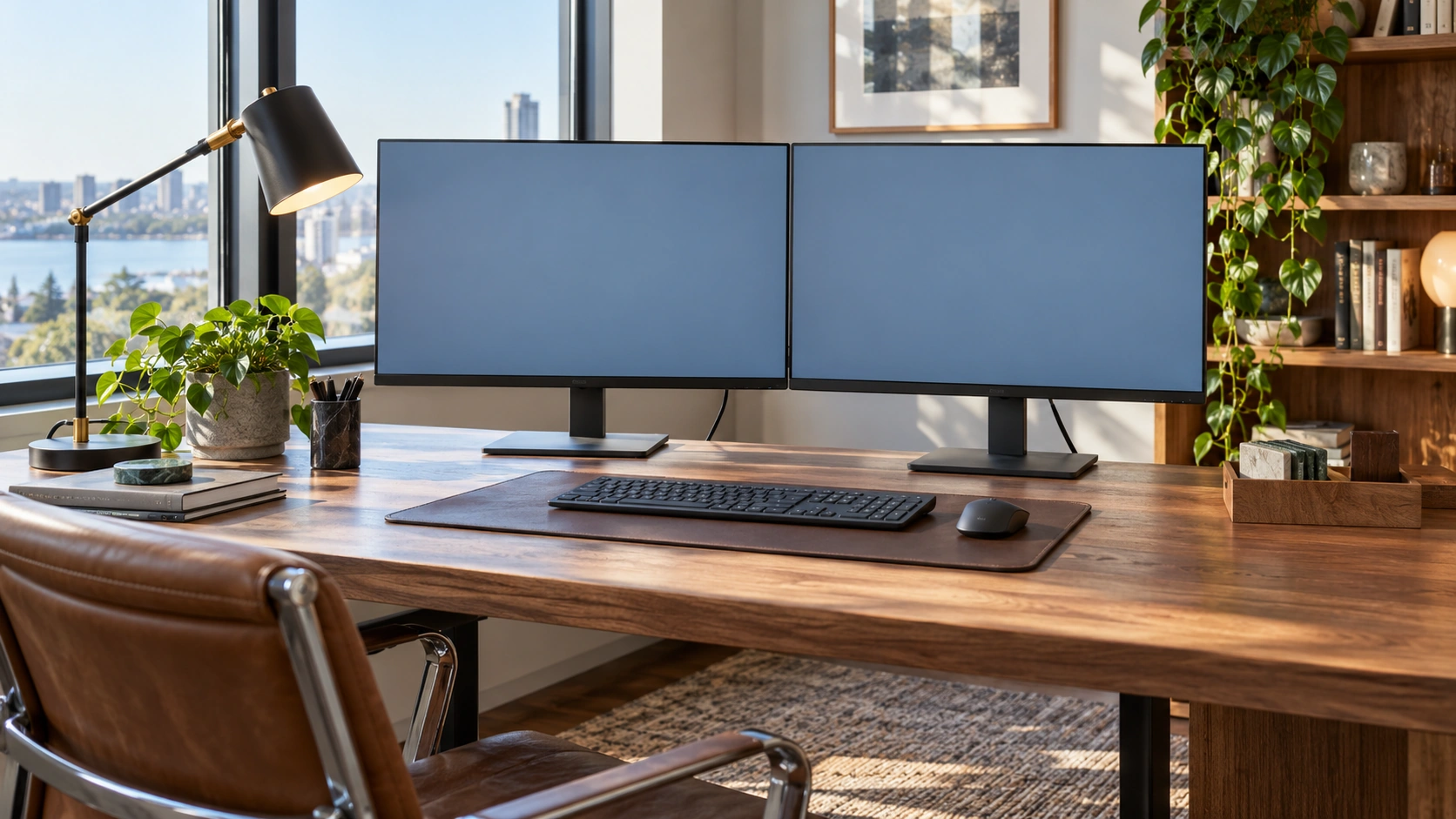
A second monitor is often sold as a way to fit more windows on your desk. The bigger opportunity is not having more pixels. It is giving different kinds of work their own space, so you can move between them without constantly rearranging everything.
For people managing multiple email accounts, a two-monitor setup can be particularly useful. Keep your primary screen for the work you are producing, and give email a dedicated place on the second screen. That alone can make a busy desktop feel calmer, especially when Gmail and Outlook are both part of your day.

Try InboxCabin free for 30 days. No credit card required.
 Start Free Trial
Start with a simple division of labor
I like a straightforward arrangement: one monitor is for doing, and one is for communicating. The main monitor holds your document, spreadsheet, CRM, design tool or research. The other monitor holds email and the communication work you need to reference.
This avoids the common pattern of opening an email over the top of your project, losing your place, and then hunting for the project window again. You can glance at the mail workspace, respond when appropriate, and return to the main screen without rearranging everything.
The setup does not need to be rigid. During a video call, the secondary monitor might show notes. During a complex client project, you might want two documents side by side. The goal is a reliable default arrangement that saves decisions, not another set of rules to maintain.
Choose the right physical layout
If your monitors are similar sizes, put the one you use most directly in front of you. Position the second at a comfortable angle, close enough that you do not constantly twist your neck. Keep the top of the displays at a comfortable viewing height and avoid reflections from windows or overhead lights.
If one display is smaller, it often makes sense as the communication monitor. You do not need a huge screen to view a mailbox list and read messages. The larger display can remain dedicated to spreadsheets, documents or creative work that benefits from more horizontal space.
Windows provides display-arrangement controls and window-snapping tools to help manage multiple monitors. Microsoft’s support documentation on multiple displays is a sensible place to verify the current steps for your Windows version.
Put your email in one dedicated place
A two-monitor setup works best when you stop moving the same app between screens all day. Decide which monitor usually holds email, open the app there and let the location become familiar. Consistency reduces the amount of visual searching you do.
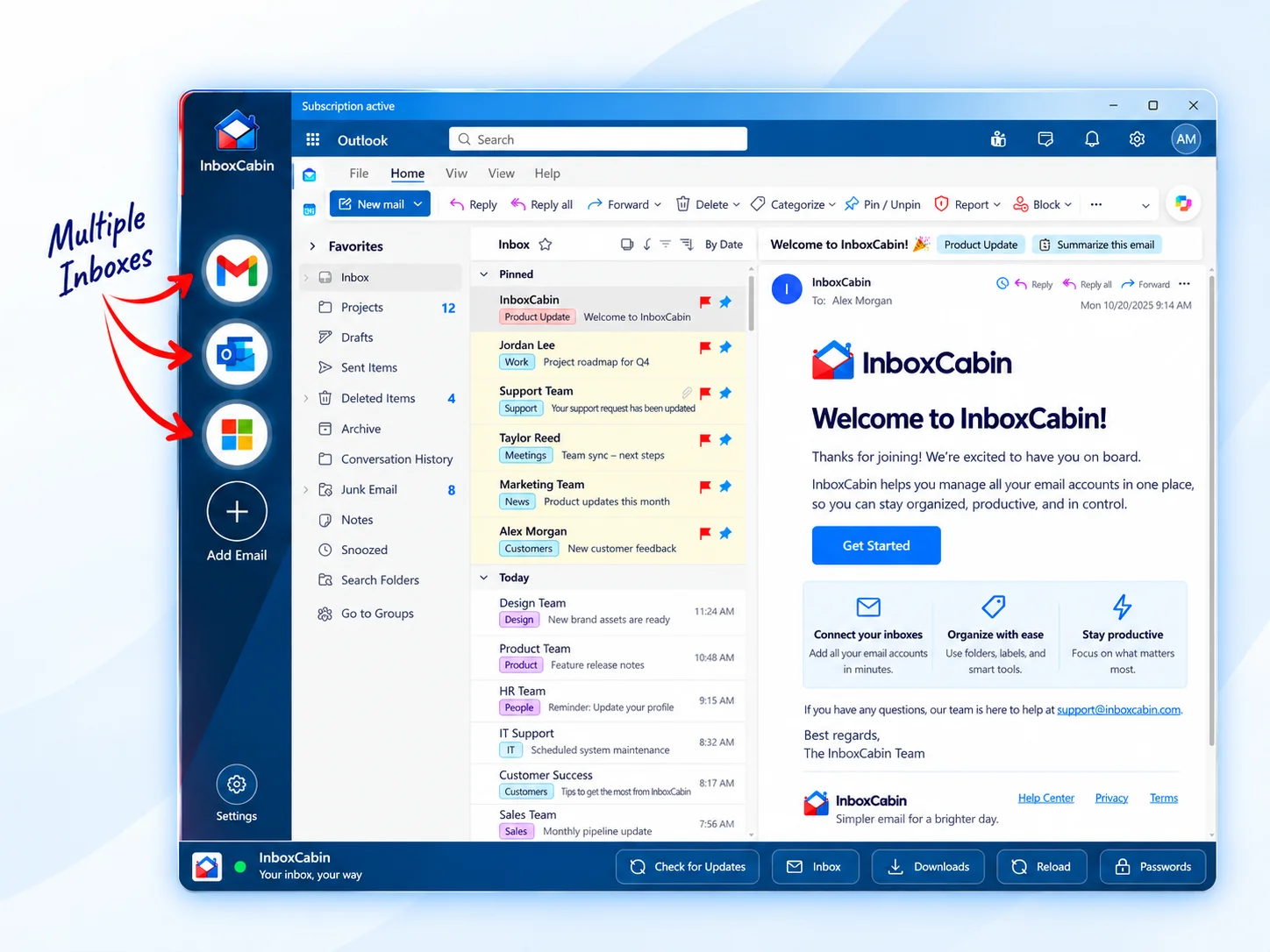
For multiple Gmail and Outlook accounts, a dedicated desktop application can make that secondary screen much more useful. Instead of keeping separate browser windows for different accounts, InboxCabin displays your mailboxes together in a sidebar. You can move from one to another without making the browser itself your email control center.
The normal Gmail and Outlook interfaces remain visible inside their respective accounts. That makes the arrangement easy to learn if you already use those services. It does not merge the messages into a new unified inbox, and Google or Microsoft can still request sign-in verification when needed.
For a practical next step, see how to keep email separate from your browser.
30-day free trial. No credit card required.

Reduce the cost of context switching
The real benefit of a two-monitor workspace is preserving your place. If you are writing a proposal on one screen and receive a customer message on the other, you can answer without closing the proposal. If you need information from the email, you can reference both windows at once.
But there is a trap: simply seeing more information can create more interruptions. A second display covered with constant alerts may make you less productive, not more. Decide which notifications are genuinely urgent, and let lower-priority mail wait until your planned review times.
Consider keeping the secondary display quiet during deep work. You can leave the email window available without responding to every visual change. Availability and urgency are not the same thing.
A practical arrangement for a busy owner
Imagine you run three businesses and maintain five email addresses. Put your primary business inbox on the secondary screen first. Keep the remaining accounts available in a persistent sidebar, with recognizable names and icons. On the main monitor, keep the work you are currently producing: perhaps a contract, financial model or client system.
When a time-sensitive message arrives, switch to the right mailbox, handle it, and return to the document. When it is time for routine email checks, work through the remaining inboxes in a deliberate order. You retain access to all your communication without letting mail become the center of every task.
You can add a few small refinements: make the active window large enough to read comfortably, use a consistent screen position for downloads, and avoid opening duplicate versions of the same inbox across multiple browser profiles unless you truly need them.
What if you only have one monitor?
The same principle still works. Give email its own desktop application or dedicated window and switch to it intentionally rather than scattering tabs across a browser. Windows task switching and virtual desktops can help you keep the work separate even without additional hardware.
In other words, the useful idea is not the second monitor itself. It is creating a dependable home for each kind of activity. The second monitor simply makes that separation easier to see.
A calmer desktop starts with one good default
You do not need expensive monitors or an elaborate productivity system to benefit from a cleaner email layout. Start by deciding where email belongs and how you want to reach your different accounts. Keep the rest of your workspace devoted to the task in front of you.
If multiple Gmail and Microsoft accounts are the cluttered part of your desktop, try InboxCabin. Its focused Windows workspace is designed to make switching among inboxes fast, while your primary monitor and normal browser remain free for everything else.
Try InboxCabin free for 30 days. No credit card required.
Start Free TrialWant more background? Read our introduction to InboxCabin.