

Switching software can feel bigger than it really is, especially when the tool sits in the middle of your daily workflow.
That is why some users stay with products long after the fit starts to weaken. Even when they feel frustrated, they worry that changing tools will trigger a long, annoying rebuild of everything they do.
If you are thinking about moving on from Shift, the key is not to think of the switch as replacing your entire work life. In many cases, you only need to replace one specific function: how you manage multiple email accounts.

Try InboxCabin free for 30 days. No credit card required.
 Start Free Trial
Why switching tools feels harder than it is
When a product has been part of your routine for years, it naturally accumulates importance in your head. You stop seeing it as a tool and start seeing it as infrastructure. That makes any change feel risky.
But the reality is that most people can untangle their workflow more easily than they think. Your browser is still your browser. Your email providers are still your email providers. Your project tools, chats, documents, and SaaS apps still exist independently. The only real question is where you want your inbox management to live.
That reframing is useful because it shrinks the size of the decision. You are not rebuilding your entire digital life. You are choosing a better place for one important task.
If you are still using a Shift account, review Shift’s official migration guidance before making changes. The steps there apply to moving between Shift products; setting up InboxCabin is a separate process.
Step 1: define the job you need the tool to do
Start with honesty. What do you actually need from the replacement? For many users, the answer is simple: keep several Gmail and Microsoft accounts signed in, make switching fast, keep things separated, and reduce clutter.
If that is your real need, do not get distracted by giant feature lists. The replacement does not need to replicate every possible layer of the previous product. It only needs to do the job you actually care about.
This is a major reason people get stuck. They evaluate alternatives as if they must mirror the full complexity of the old tool, even when they no longer want that complexity.
Make a small migration checklist before changing anything: write down the Gmail and Microsoft addresses you use, note which are personal or business accounts, save the display labels you prefer, and make sure you can complete each provider’s security verification on a new device. Keep your existing browser and account credentials accessible while you test the new workflow.
30-day free trial. No credit card required.

Step 2: separate email from everything else
A practical way to simplify the move is to separate email from the rest of your workflow. Let your browser remain the place where web apps, research, messaging, and general work live. Then choose a dedicated desktop app for email.
This reduces the switching cost dramatically. You are not migrating your whole work environment. You are simply deciding that email deserves its own clean space again.
Once you think about it this way, the transition becomes less intimidating. You can keep nearly all your habits intact while improving the part that currently feels off.
Then install InboxCabin and add the accounts you want in the order you normally use them. Confirm each one opens the expected mailbox. Try sending a harmless test message from each account to verify you can tell them apart. Finally, use the app for a normal workday before deciding whether it should replace the email-specific part of your old setup. InboxCabin does not promise a direct import of Shift profiles or authenticated sessions, so plan on signing into Gmail and Microsoft again.
Step 3: choose a focused multi-inbox tool
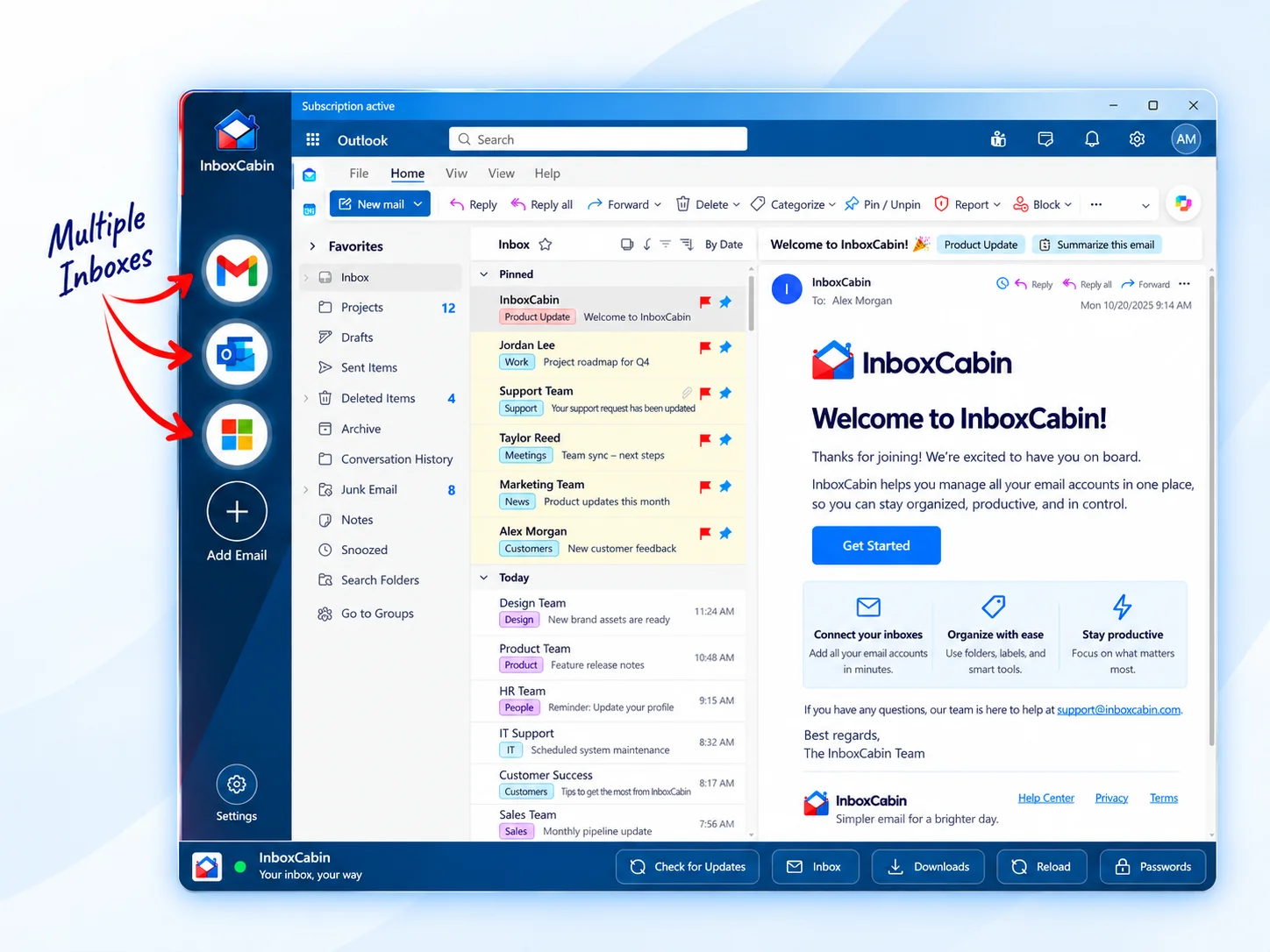
That is where InboxCabin comes in. It is designed to solve the multi-inbox problem directly, without requiring you to buy into a larger browser-style environment.
You add your Gmail and Microsoft inboxes, keep them visible in one dedicated interface, and switch between them quickly. That is the value proposition. For many users leaving Shift, that is exactly enough.
Because the product is focused, it is easier to understand and easier to adopt. You are not learning a sprawling system. You are getting back to a clearer email workflow.
And if what you really missed was a simpler way to manage multiple accounts, the adjustment can feel much smaller than you expected.
One more practical benefit of this approach is that it lowers risk. You can simplify the email portion of your setup without changing every other system you depend on. That makes the transition easier to test. If the focused approach feels better after a few days, you gain confidence quickly because you improved a real pain point without rewriting your entire work environment.
Before choosing your new routine, it can help to identify what you actually miss about the old Shift workflow. For a walkthrough of the destination, see how InboxCabin organizes multiple email accounts in one desktop app.
Final thoughts
You do not need to rebuild your whole workflow just because one tool stopped fitting the way it used to.
If your main concern is managing multiple inboxes cleanly, the smartest move may be to simplify rather than replace like-for-like. Separate email from the rest of your digital environment, choose a focused tool, and reduce friction where it matters most.
InboxCabin was built to make that switch easier. Download it, connect your inboxes, and see how much lighter your workflow feels when the tool matches the job again.
Try InboxCabin free for 30 days. No credit card required.
Start Free TrialInboxCabin is an independent Windows app and is not affiliated with Shift. Gmail and Microsoft may require sign-in and multifactor authentication. “Lighter” describes a focused workflow, not a measured memory or speed comparison.