
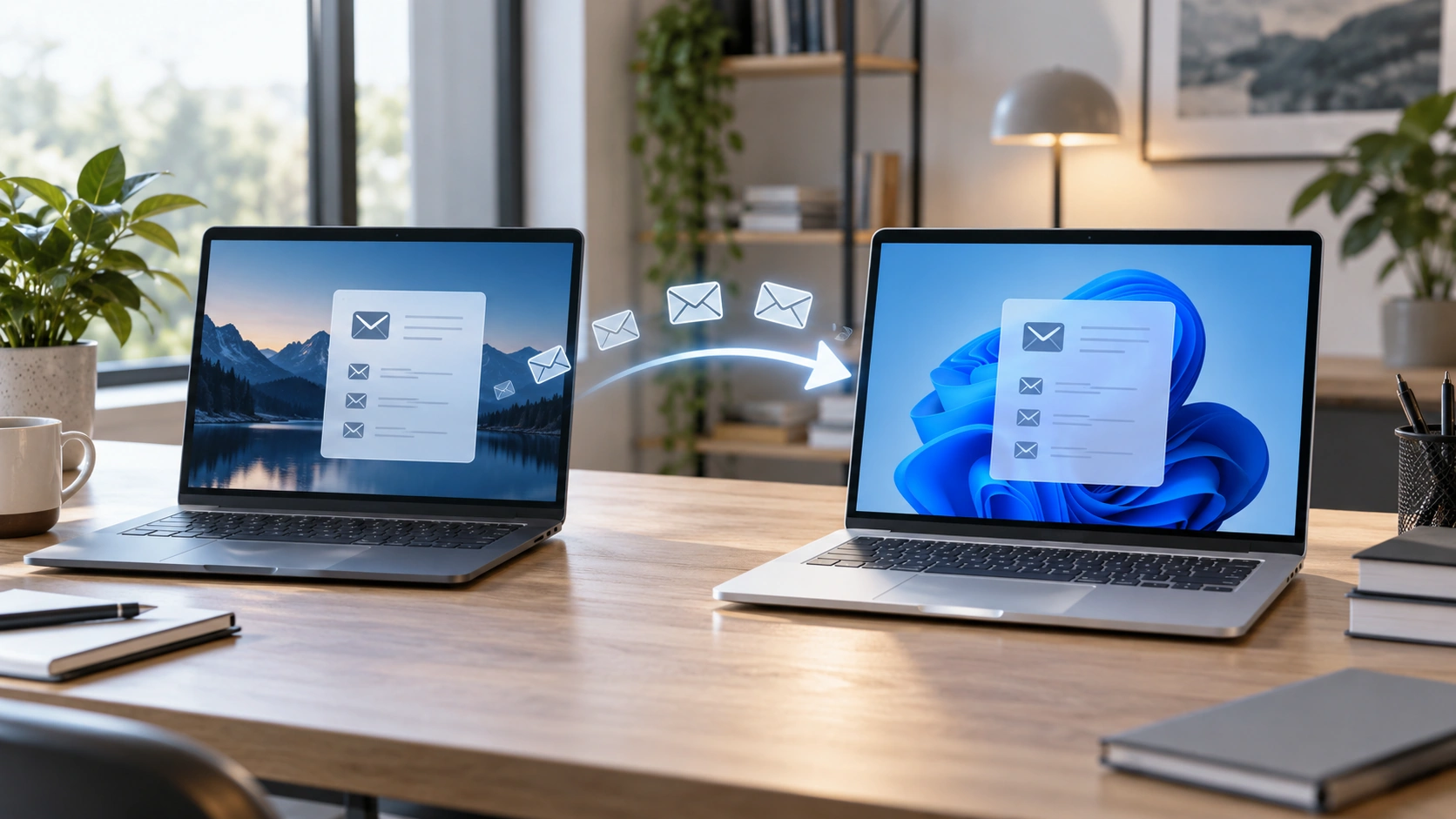
Moving to a new Windows computer is easy to underestimate because email setup includes more than just entering your password again.
The good news is that most multi-account email problems are solvable once you stop treating them like random annoyances and start treating them like workflow design issues. In other words, the problem is often not email itself. The problem is the environment around it.
A better setup should make the right account easier to open, the right notification easier to notice, and the right response easier to send.

Try InboxCabin free for 30 days. No credit card required.
 Start Free Trial
Why this problem happens
Most people build their email setup one shortcut at a time. They add a browser tab here, a pinned window there, maybe a second profile later. After a while, the setup technically works, but it no longer feels intentional.
- saved browser profiles or desktop shortcuts are not recreated automatically
- notification settings and account naming can be forgotten
- the old computer often contains little workflow habits that are easy to overlook
Fixes to try first
Before you switch products, fix the basics. Cleaner account separation and a more deliberate desktop layout often improve email management immediately.
- Make a list of every account and tool before you start.
- Document any browser profiles, shortcuts, and notification settings you rely on.
- Set up the new machine methodically instead of improvising from memory.
- Test each account for send/receive, notifications, and login persistence before retiring the old device.
What usually changes the workflow for good
The goal is not just to get email working. The goal is to reproduce a calm, low-friction workflow on the new computer without rebuilding your old mess.
That is why the best setups tend to reduce ambiguity. You want fewer places to check, clearer visual cues, and less mental effort just to know where you are.
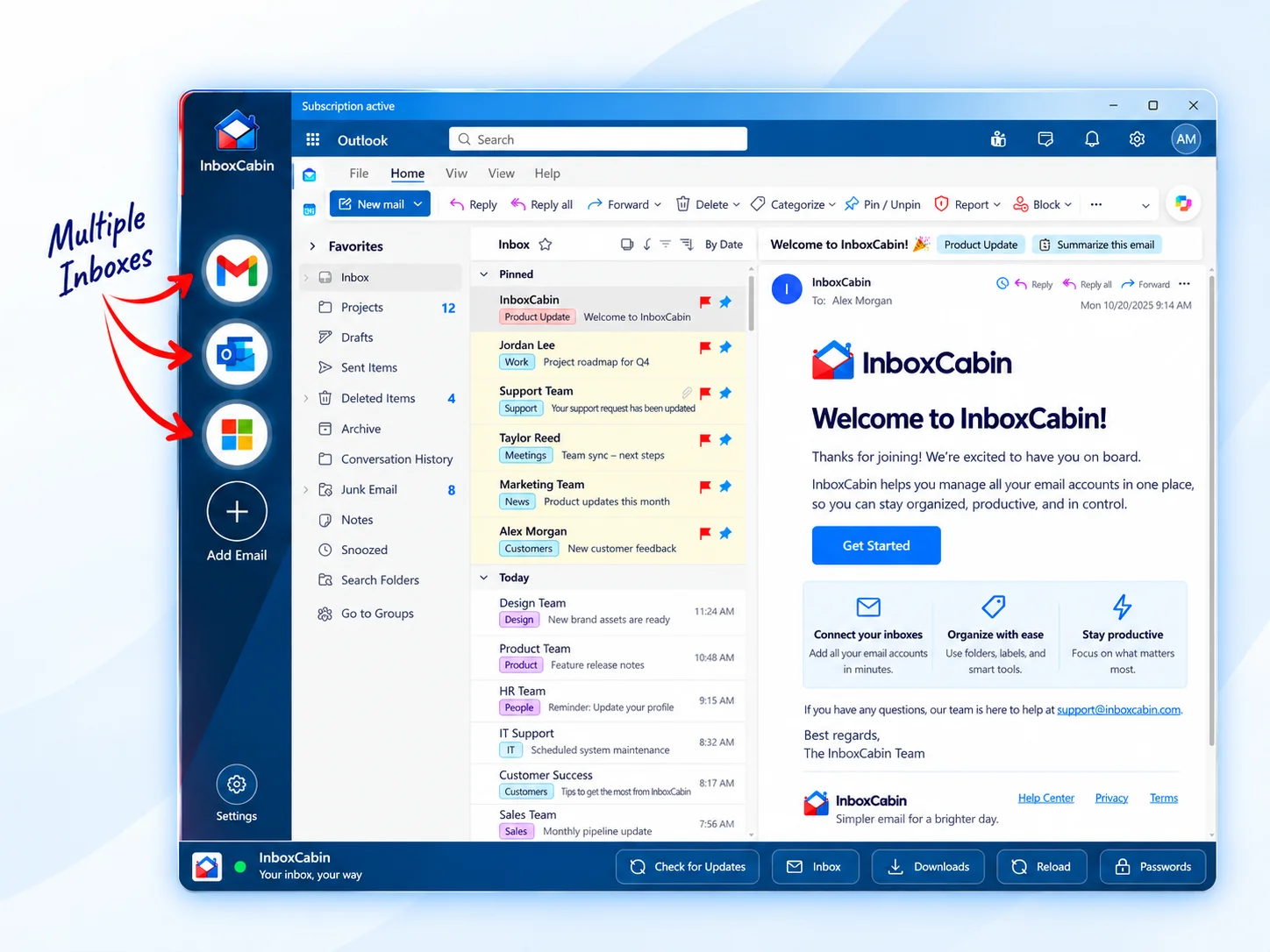
30-day free trial. No credit card required.
Transfer your InboxCabin setup
In InboxCabin, open Settings → Backup & Transfer on the source computer. You can generate a transfer code or create an encrypted backup file protected by a passphrase. Import the code or restore the file on the new computer. Keep the source setup current before transferring: imported matching inboxes can replace their local settings.
The transfer carries your mailbox setup, saved app passwords, profile images and order. You still need to sign in to the email providers and complete any required multi-factor authentication. Browser-only saved passwords must first be saved in InboxCabin to travel with the transfer. Check every inbox before retiring the old computer.

A practical setup plan
If you are rebuilding your setup, keep it simple. Start with the accounts that matter most, then test the structure for a few days before adding extras. Resist the urge to build a perfect system in one sitting.
InboxCabin can simplify that transition because you are re-creating one dedicated email workspace instead of rebuilding a maze of browser tabs and ad hoc shortcuts.
For provider-specific details, start with official help pages like Google’s multiple-sign-in help, Google’s Gmail Help, Microsoft Outlook support, and Microsoft’s Windows notification guidance when relevant.
Common setup mistakes to avoid
Most people improve one part of their email setup and accidentally leave the rest untouched. They create a desktop shortcut but keep using one giant browser profile. Or they add more accounts but never rename them clearly. Those half-fixes often help a little, but they do not solve the deeper workflow problem.
- Avoid adding more tabs when what you really need is more structure.
- Avoid using the same visual identity for several important accounts.
- Avoid rebuilding everything at once; keep the test small and practical.
A simple rule works well: if a setup step would not make sense to you six months from now on a busy day, it is probably too fragile. Build for the version of you that is rushed, distracted, and trying to respond quickly.
What a good end-state looks like
A strong Windows email setup is boring in the best possible way. You know exactly where each inbox lives. Notifications arrive from the right place. Shortcuts are obvious. Opening the correct account takes almost no thought. That may not sound glamorous, but it is what turns email from a constant interruption into a manageable part of the workday.
Bottom line
The best email setup is the one that feels obvious at 8:00 a.m. on a busy Tuesday, not the one that sounded clever when you first configured it.
Related reading: How to Use Gmail as a Desktop App Without Keeping Chrome Open, How to Manage Two or More Outlook Accounts on One PC, Is It Safe to Use Your Work Email on a Personal Computer?.
Try InboxCabin free for 30 days. No credit card required.
Start Free Trial