

Now that Windows Mail has effectively been replaced, Windows users need a practical alternative that fits how they actually manage email today.
That matters because most people are not just choosing software anymore. They are choosing a workflow. If an app looks good in a feature list but makes you slower or more confused during a normal workday, it is not actually the right fit.
If you want a Microsoft-first default, New Outlook is the obvious place to start. If you prefer a classic mail-client feel, a traditional client like Thunderbird or Mailbird may feel more familiar. If your real goal is simply keeping several Gmail and Microsoft accounts open in a cleaner dedicated workspace, InboxCabin is worth a look.

Try InboxCabin free for 30 days. No credit card required.
 Start Free Trial
What problem are you actually trying to solve?
Before comparing products, it helps to get specific about the job in front of you. Some people want a traditional desktop mail client. Some want the default Microsoft experience. Others simply want easier access to multiple Gmail and Microsoft inboxes without living inside a crowded browser session all day.
That is why comparisons around the old Windows Mail app can feel confusing. Two tools can both be good and still be good for different reasons. The right question is not just “Which is better?” It is “Which one removes the most friction from my actual day?”
Where this option works well
Every credible option on Windows has a lane where it makes sense. That is why it is important to evaluate fairly rather than assuming one style of product should win every comparison.
- easy on-ramp for people already in the Microsoft ecosystem
- several free or low-cost options depending on whether you want a client or a workspace
- a good opportunity to choose a setup that finally matches how you really work
Where people still get frustrated
The most common disappointment comes from choosing based on features alone. Users install a new tool, move their accounts over, and then discover that the daily workflow still feels messy. The tab clutter may remain. Notifications may still feel chaotic. Account boundaries may still be fuzzy.
- many replacements solve every communication problem except your actual email workflow
- switching too quickly often creates more tab clutter, not less
- some users do not want a full unified client; they just want their existing inboxes easier to manage
Where InboxCabin fits
InboxCabin is not trying to recreate the old Windows Mail app feature for feature. Its value is that it gives you a dedicated Windows workspace for multiple Gmail and Microsoft accounts without burying email inside a browser full of unrelated tabs.
That distinction matters. InboxCabin is not trying to be every kind of email software for every type of user. It is for people who want a cleaner place to run multiple Gmail and Microsoft accounts on Windows while preserving the separate context of each inbox.
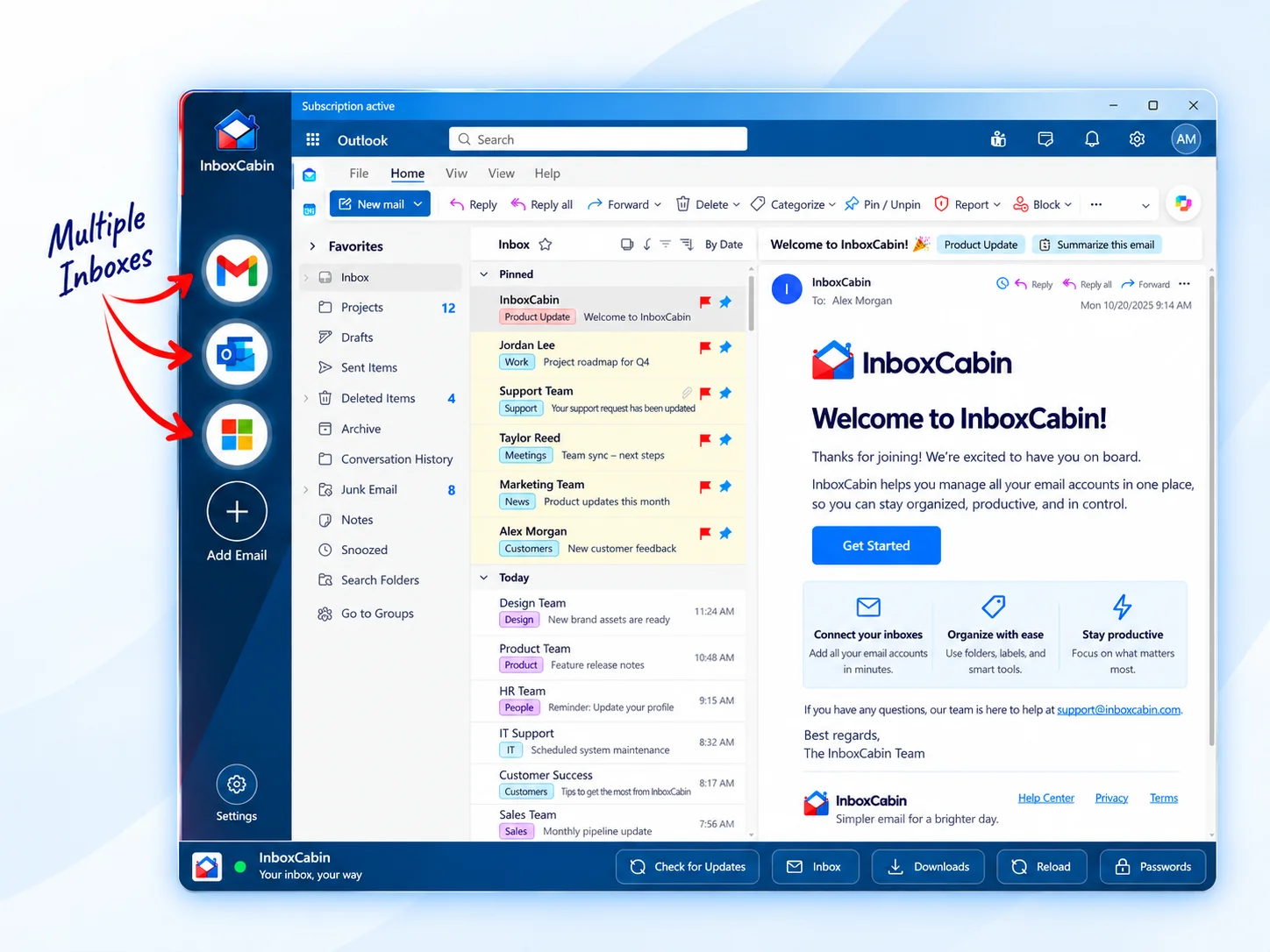
30-day free trial. No credit card required.

How to choose without overthinking it
A quick practical test beats hours of feature-comparison research. Use your real accounts for a few sessions. Open the messages you normally handle. Reply, triage, and switch contexts the way you usually would. Then notice which setup makes you feel more in control.
- Decide whether you want a traditional mail client, a Microsoft default, or a dedicated email workspace.
- List the accounts you actually use each day: personal Gmail, work Microsoft 365, shared inboxes, or client mailboxes.
- Choose the tool that matches that workload rather than the one with the biggest feature list.
- Keep the first week simple, then add folders, labels, or additional accounts once the core workflow feels stable.
For technical detail and provider behavior, it is still smart to check Microsoft Outlook support and Google’s Gmail Help where appropriate.
Mistakes to avoid when comparing email tools
The biggest mistake is comparing a focused product to a broad product as if they should win on the same criteria. A traditional client, a productivity browser, and a dedicated email workspace can all be excellent tools while solving different jobs. If you compare them only by total features, you often end up choosing the wrong tool for your real day-to-day workflow.
Another mistake is running a trial with a fake setup. Use your real accounts, your normal response habits, and your actual busiest hour of the day. That is when the strengths and weaknesses become obvious. A clean product should make switching accounts easier, reduce hesitation before you reply, and cut down on the number of tabs or windows you need just to stay oriented.
- Do not judge the tool by setup alone; judge it by your second and third day using it.
- Pay attention to wrong-account risk, not just visual polish.
- Notice whether notifications, account naming, and daily triage feel easier or harder.
If an option feels impressive but still leaves you mentally scattered, it probably is not the best fit. In email, clarity usually beats power.
Bottom line
If your goal is broad features or a classic desktop-client experience, another option may be the better match. If your real goal is calmer multi-account email on Windows, InboxCabin deserves a serious look.
Related reading: New Outlook vs. Classic Outlook: Which Is Better for Multiple Accounts?, Best Windows Email Apps for Managing Multiple Accounts in 2026, How to Use Gmail as a Desktop App Without Keeping Chrome Open.
Try InboxCabin free for 30 days. No credit card required.
Start Free TrialProduct reference: Microsoft’s Windows Mail retirement guidance.