
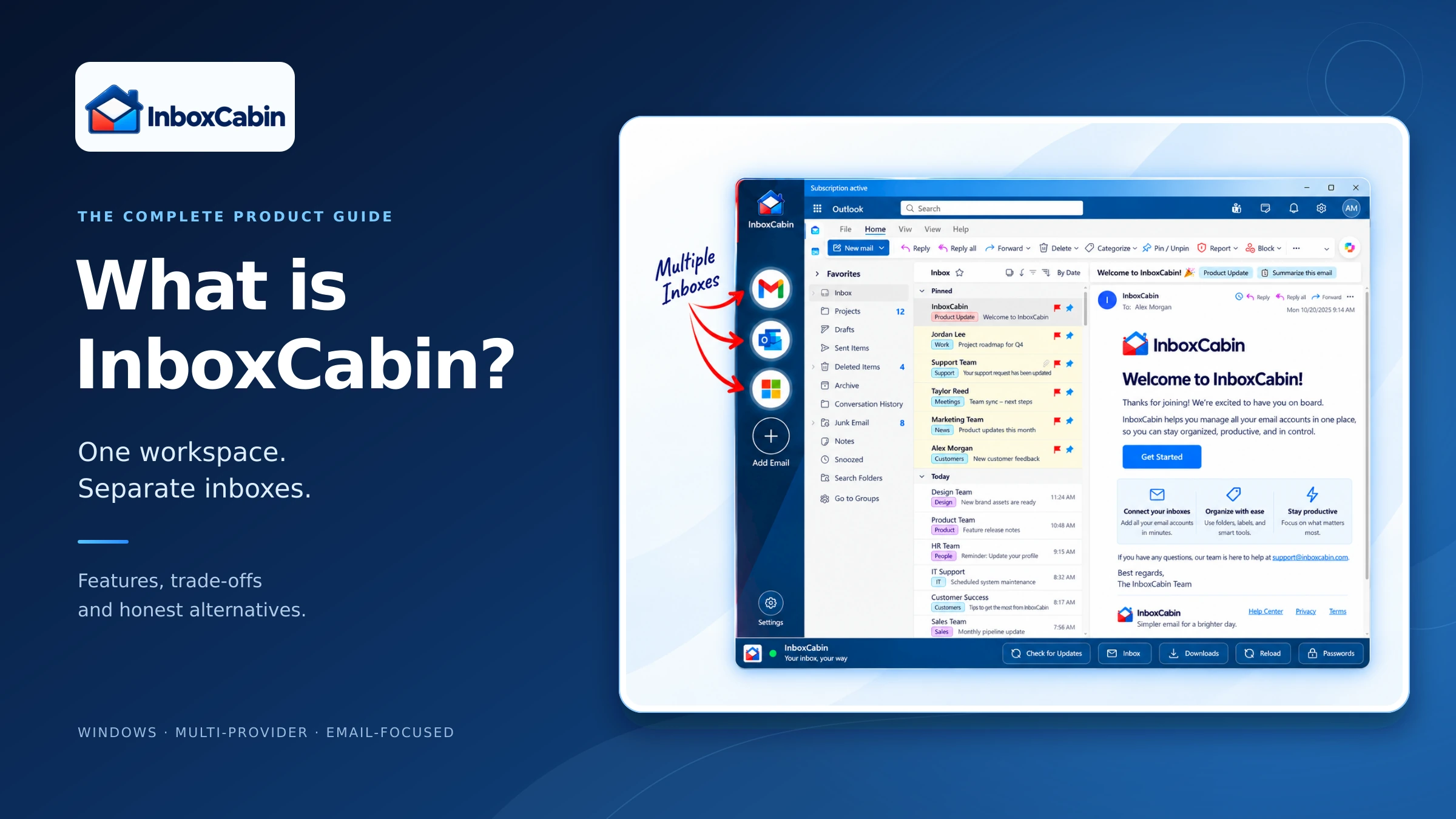
InboxCabin is a Windows desktop app that keeps multiple email accounts in one workspace, with a separate place for each inbox. It is built for people who like their existing webmail but want an easier way to move between accounts. It does not provide a new email address, replace your email host, or automatically merge every message into one combined inbox.
That distinction matters. If your problem is “I keep losing track of which account is open,” InboxCabin may be a good fit. If your problem is “I need one searchable message list across every account,” a traditional email client may suit you better.
This guide explains both sides: what InboxCabin does well, what it deliberately leaves out, and when alternatives such as Shift, Rambox, Wavebox, Mailbird, Thunderbird, or eM Client make more sense.
Published by InboxCabin. Product details and competitor documentation reviewed October 22, 2026. Comparisons describe documented capabilities and workflow fit, not independent performance benchmarks.
What does InboxCabin actually do?
Think of InboxCabin as a dedicated home for your existing email accounts. Each account has its own saved place in the sidebar. Open the app, choose the account you need, and work in that provider’s familiar webmail environment.
You can keep personal and business accounts separate while accessing them from the same desktop window. Gmail stays Gmail. Outlook stays Outlook. Your other providers remain responsible for hosting and delivering their messages.
The current app supports multiple providers, including Gmail, Microsoft accounts, Yahoo, Zoho, and custom webmail. A provider’s security requirements still apply: supporting its inbox does not mean bypassing multi-factor authentication, company access policies, or account restrictions.
The practical benefit is a consistent place to switch accounts without reorganizing your email around a different service. Your browser can remain your browser, while your inboxes have their own workspace.
You can download InboxCabin for Windows and try that workflow free for 30 days without a credit card.
Why was InboxCabin created?
The idea came from a straightforward frustration. Founder Eric Winegar spent years using a broader email-and-app workspace, but the benefit he valued most was simple: keeping multiple inboxes accessible without repeatedly navigating between accounts.
InboxCabin grew out of that narrower need. Someone running several businesses might have an operational inbox, a separate purchasing account, a personal address, and an older mailbox that still receives important messages. They may not want to change email providers or adopt a complete productivity system. They just want those accounts to be easier to reach.
That is a product choice, not a claim that larger applications are misguided. Their extra tools are valuable when you use them. InboxCabin is intended for the person whose daily requirement is mostly email, and who prefers a focused workspace over a broader collection of features.
One workspace is not the same as one unified inbox
“All your email in one place” can describe two quite different experiences.
In a multi-account workspace, you switch between separate inboxes. This preserves the visual and organizational context of each provider. InboxCabin follows this model.
In a unified inbox, messages from several accounts appear together in a shared list. Full email clients can also provide cross-account search, local synchronization, and their own tools for composing and organizing messages. Many still let you view each account separately; a unified view does not mean losing your identities.
Neither approach is automatically better. A consultant who wants to keep client work visibly separate may prefer switching. Someone processing hundreds of messages across several addresses may prefer one combined queue.
Choose according to how you want to work, not just how many accounts you have. If you are weighing the broader workspace approach, our discussion of why some Shift users want simpler email management explores that trade-off.
How a typical InboxCabin setup works
Start by identifying your actual mailboxes. Two email addresses are not necessarily two accounts: an alias may deliver into an existing inbox and need no separate sidebar entry.
For each independent account, the general process is:
- Install InboxCabin on a supported Windows computer.
- Choose Add Email and use the appropriate provider or custom-webmail option.
- Sign in through the provider’s normal authentication flow, including any required verification.
- Give the account a recognizable label or icon, then add the next account.
- Switch between them and send a test message from each to verify the intended sender.
For example, a small-business owner could keep two business Gmail accounts, a Microsoft work account, a Yahoo personal account, and a domain-hosted mailbox in the same workspace. They remain distinct inboxes rather than becoming one blended message list.
Saved sessions reduce routine sign-in friction, but they are not permanent access guarantees. A password change, security review, expired session, or administrator policy can require you to sign in again.
For more specific workflows, see our guides to multiple Gmail inboxes and multiple Outlook inboxes.

Try InboxCabin free for 30 days. No credit card required.
 Start Free Trial
What InboxCabin does well
Keeps familiar email interfaces
If you already know your provider’s folders, labels, search, and compose window, you do not need to learn a replacement mail interface just to organize access to several accounts. Provider features remain provider features; InboxCabin’s main contribution is the workspace around them.
Makes account context visible
An identifiable sidebar entry gives each account a consistent destination. That is useful when the same person handles personal mail and several businesses. It does not prevent every sending mistake, but it provides a clearer account-switching routine than a collection of look-alike tabs.
Works across providers without an email migration
You do not have to move an old address to a new host simply because you want easier access. A mixed setup can include Yahoo Mail, Zoho Mail, and other webmail accounts alongside Gmail and Microsoft.
Keeps the product’s purpose narrow
InboxCabin is focused on accessing and switching inboxes. For someone who already has a preferred browser and other work tools, that narrower scope can be appealing. That focus is the selling point. Users who need broader functionality may prefer one of the alternatives below.

Where InboxCabin does less than other applications
The limitations should be part of the buying decision, not something you discover after installing.
It is Windows-focused. The current download supports Windows 10 and Windows 11 on 64-bit Intel/AMD systems. If you need the same application on a Mac, Linux computer, and phone, compare cross-platform alternatives first.
It does not combine all messages into a universal inbox. You still switch accounts. If one shared queue and cross-account message search are essential, consider a full email client.
It is not an offline mail archive. Do not choose it expecting a locally synchronized library of every message. An email client configured to download mail is a different tool for that job.
It is not a full productivity browser. If you want extensive app integrations, browser extensions, complex workspaces, or a central home for email, chat, project management, and research, the broader products below offer more.
It does not add every advanced email feature itself. Your provider may already offer rules, scheduled sending, or drafting assistance. Accessing those within webmail is different from InboxCabin supplying a unified automation or AI layer across all accounts.
It costs money after the trial. Browser profiles, built-in account switchers, and free email clients can be perfectly adequate. If your current arrangement is comfortable, there is no reason to pay simply because you have several addresses.
InboxCabin compared with six alternatives
The closest comparisons fall into two groups: products that organize web apps, and clients that manage the messages themselves. The table summarizes editorial best-fit judgments based on each vendor’s documentation.
| Application | Main approach | Consider it when you want… |
|---|---|---|
| InboxCabin | Separate webmail accounts in a Windows workspace | Focused access to your existing inboxes |
| Shift | Customizable productivity browser | Email alongside broader browser and app workflows |
| Rambox | Multi-app workspace and session management | Email, messaging, and other work apps organized together |
| Wavebox | Feature-rich productivity browser | App grouping, extensions, split screens, and dashboards |
| Mailbird | Full desktop email client | A unified inbox and richer message-management tools |
| Thunderbird | Free, open-source email client | Multiple accounts, configurable mail management, and no subscription |
| eM Client | Integrated email and productivity client | Email, calendars, contacts, tasks, notes, and chat |
Shift, Rambox, and Wavebox: when email is only part of the job
Shift positions itself as a customizable browser, with Spaces and app integrations. It makes sense to consider Shift if you want your browser itself to organize your working day. InboxCabin is a narrower choice when you want a dedicated email workspace alongside the browser you already use.
Rambox brings multiple web apps and accounts together, with workspace and session-management options. It can be a better fit when switching between email, messaging, and other tools is the real problem. Its plans include a free option, so compare the relevant account and workspace limits before assuming you need a paid alternative.
Wavebox offers app grouping, multiple sign-ins, browser extensions, split-screen tools, and more extensive workflow organization. Those are meaningful advantages for users managing a wide collection of web apps. InboxCabin is aimed at a smaller task, not at matching that entire browser feature set.
These products can also keep accounts separate. Separation alone is not unique to InboxCabin; the distinction is the email-focused experience.
Mailbird, Thunderbird, and eM Client: when you want a different email interface
Mailbird offers a unified inbox, cross-account search, and additional message-management features. Its current desktop product supports Windows and macOS. If you want to process messages from several providers in one interface, it deserves serious consideration. Check the plan: its free version is limited to one account, while multiple accounts require Premium.
Thunderbird is free and open source, with Windows, macOS, and Linux versions. It supports separate accounts or a unified inbox, plus calendars, contacts, and tasks. It can also provide offline access to downloaded mail. If you want a capable mail client without a subscription, Thunderbird is a strong option. The trade-off is using its interface instead of each provider’s webmail.
eM Client combines email with calendars, tasks, contacts, notes, and chat. It suits people who want those functions integrated into their mail application. Review its licensing options, particularly for business use and account limits. InboxCabin’s focused access model is different from this more comprehensive communication environment.
There is no universal winner. The useful question is whether you want easier access to existing webmail, a broader app workspace, or a new system for processing messages.
What does InboxCabin cost?
At the time of this review, InboxCabin’s published pricing is $48 per year, displayed as a $4 monthly equivalent billed annually, or $299 for lifetime access. The annual plan renews until canceled. Both advertised options include unlimited email accounts.
The trial lasts 30 days and does not require a credit card. The annual option is not a $4 month-to-month subscription. Lifetime access covers the supported commercial life of this product; read the current terms before purchasing.
We do not claim InboxCabin is the cheapest option for everyone. Some alternatives are free, and competitor pricing varies by plan, promotion, and region. Pay for InboxCabin if its workflow earns its place in your day.
Who should try it—and who should look elsewhere?
InboxCabin is worth trying if you use Windows, manage several email accounts, prefer familiar webmail interfaces, and want those accounts available in one focused workspace. Business owners, independent professionals, and people separating work from personal correspondence are natural examples.
Look elsewhere if your priority is a merged inbox, offline message storage, extensive cross-account automation, or a comprehensive browser-and-app environment. Also skip it if your provider’s existing account switcher already meets your needs.
Use the trial with your real mix of accounts. Check sign-in, attachments, sending identities, reopening the app, and any workplace restrictions. Do not assume a convenient workspace overrides an employer’s approved-software policy.
Frequently asked questions
Does InboxCabin give me a new email address?
No. InboxCabin provides a desktop workspace for accounts you already have. Your email provider continues to host your mailbox and deliver your messages.
Can I use several accounts from the same provider?
Yes. Separate Gmail accounts or separate Microsoft accounts can each have their own place, alongside accounts from other providers. An alias using an existing mailbox is not necessarily an additional independent inbox.
Does support for other providers change their security requirements?
No. Normal authentication and provider restrictions still apply. For a privacy-focused service, consult its own guidance as well as our multiple Proton Mail inboxes guide. Do not disable security protections to make an access method work.
Can I keep using my email outside InboxCabin?
Yes. Organizing access through InboxCabin does not move your mailbox away from its provider. You can continue using the provider’s website or other authorized applications.
Does InboxCabin back up my email?
InboxCabin is not a mailbox-backup service. Its privacy policy describes local session storage and optional encrypted backup of selected settings and manually saved logins. That backup excludes messages, attachments, and active provider sessions. Restoring a setup may still require sign-in and MFA.
The bottom line
InboxCabin is not trying to be the most feature-packed email application. It is trying to make a specific daily task easier: keeping multiple inboxes accessible while preserving their separate identities and familiar interfaces.
If that is the problem you want to solve, try InboxCabin for Windows. If you need more than that, the alternatives above are worth exploring. The right choice is the application that matches your workflow—not the one with the longest feature list.
Try InboxCabin free for 30 days. No credit card required.
Start Free Trial