
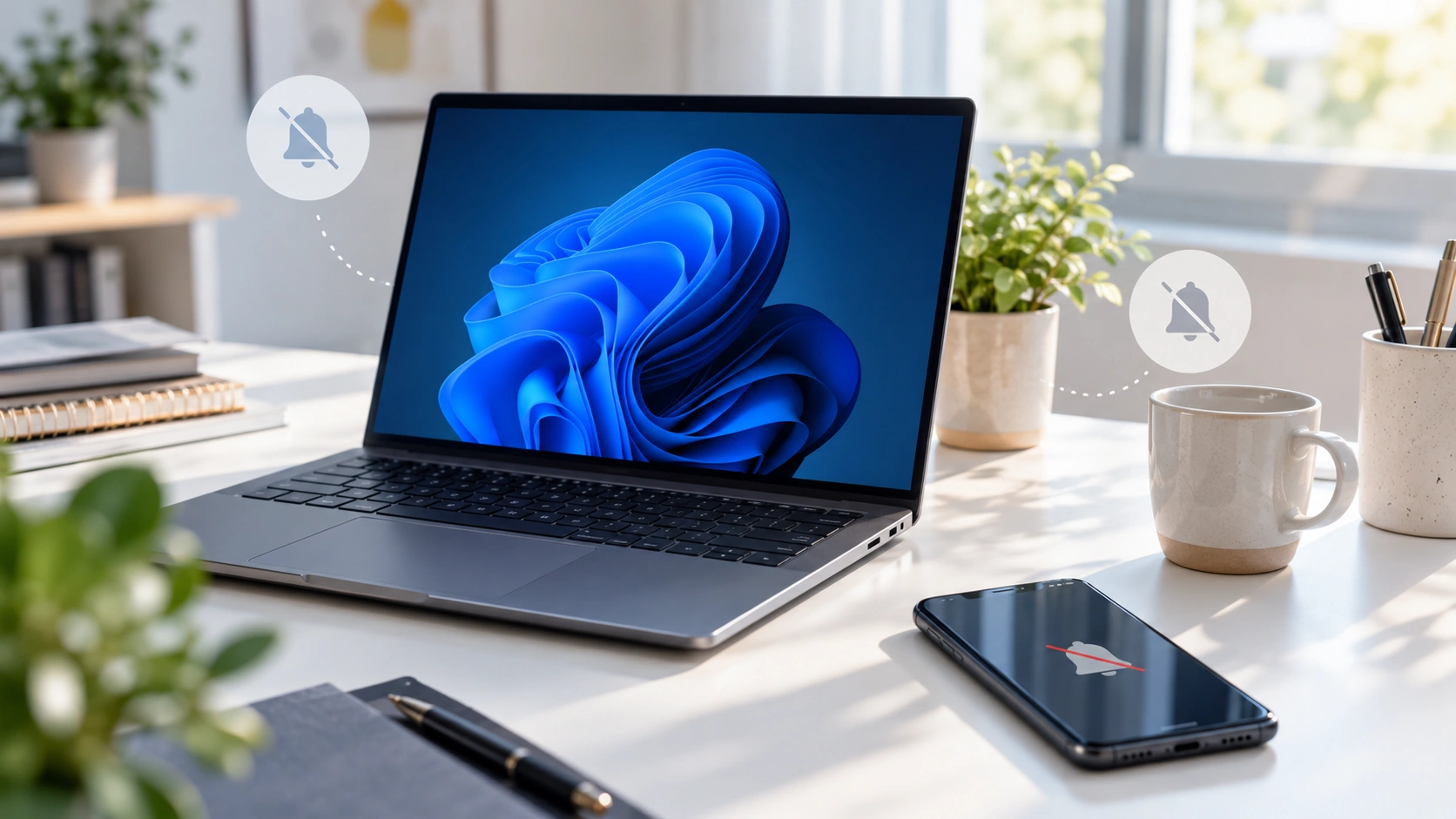
Missing notifications can make you feel like email is broken when the real issue is usually Windows settings, browser permissions, or app configuration.
That can be frustrating because the symptom looks simple while the cause can sit in several places at once. You may have a provider-level issue, a browser issue, a Windows setting, or a workflow issue that keeps recreating the same problem.
The trick is to work from the most likely causes first rather than clicking through random settings in frustration.
Try InboxCabin free for 30 days. No credit card required.
 Start Free Trial
What is usually causing it
With email, repeated friction usually comes from a short list of predictable issues. The good news is that you can often narrow the problem quickly once you know what to check.
- Windows notification settings are disabled or filtered
- Focus Assist or Do Not Disturb is hiding alerts
- browser or site permissions are turned off
- battery-saving modes and background restrictions can suppress alerts
Fixes worth trying now
Work through the simplest fixes before doing anything more drastic. Most people either overreact and rebuild too much, or underreact and keep re-entering the same credentials or repeating the same broken behavior.
- Check Windows notification settings first.
- Make sure the app or browser is allowed to send notifications.
- Verify the site-level permission inside Gmail or Outlook webmail.
- Test whether only one account is failing or the whole app is silent.
- Disable temporary suppression modes during your test.
When the real problem is your setup
Notification problems are more painful when several inboxes all depend on the same browser session. One quiet browser can make every mailbox look dead.
A messy environment makes small email issues feel much bigger. When several inboxes are mixed together, every prompt, notification, or wrong-tab moment becomes more expensive.
30-day free trial. No credit card required.
A better long-term approach
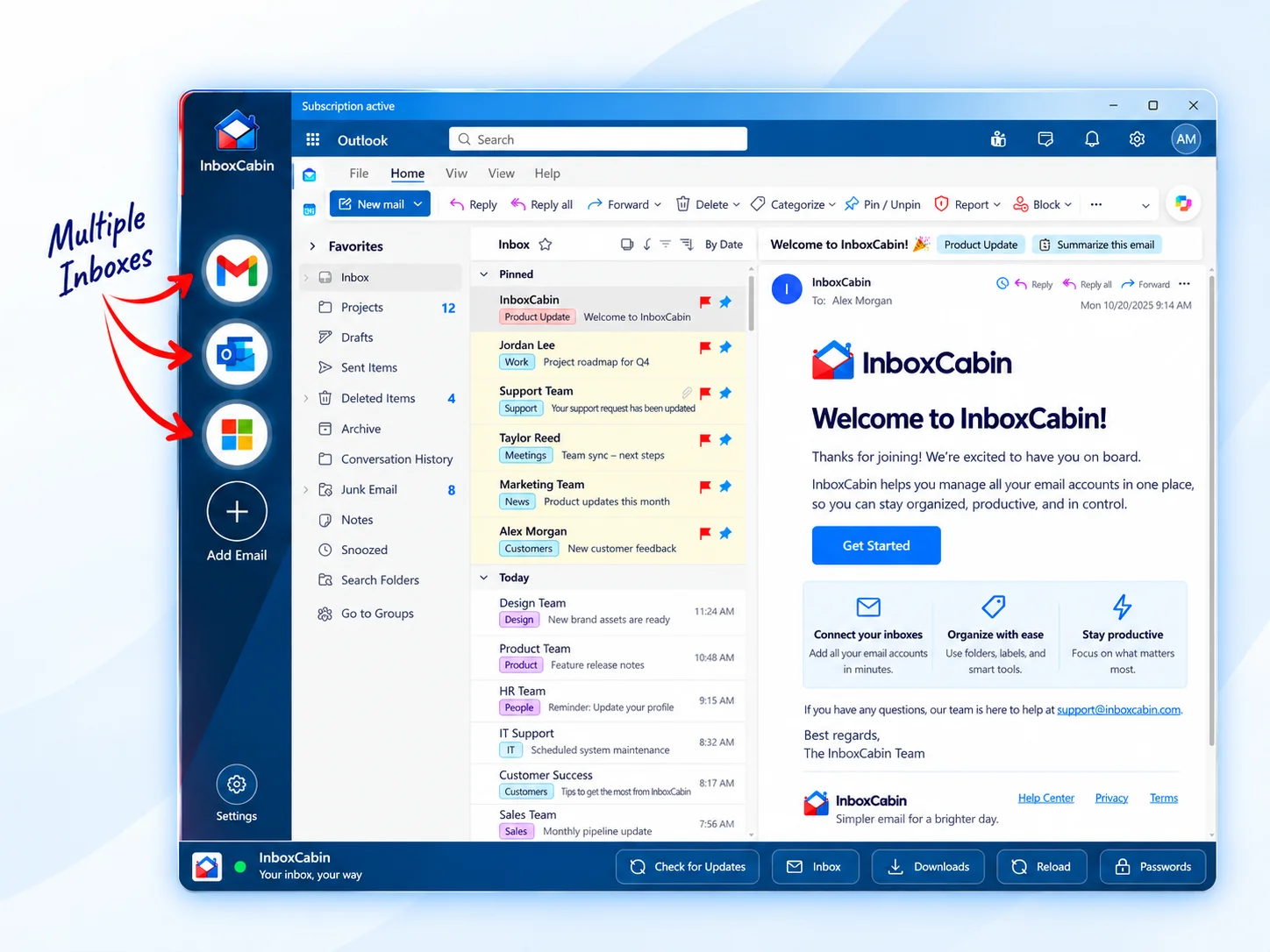
A dedicated workspace can make notification behavior easier to manage because email is not competing with the rest of your browsing habits and browser permissions.
When security policy or provider behavior is involved, use official documentation rather than guesswork. Good places to start include Microsoft Outlook support, Microsoft’s Windows notification guidance, Google’s Gmail Help, and Microsoft’s conditional access overview.

What not to do while troubleshooting
When email starts misbehaving, many users make the problem harder by changing five things at once. They clear every browser session, remove accounts, reinstall software, and change passwords without isolating the real cause. That can turn a ten-minute fix into an afternoon project.
- Do not assume the provider is down before checking your own environment.
- Do not keep retrying the same broken step without changing the surrounding condition.
- Do not ignore policy or security prompts if the account belongs to an employer.
A better approach is to test one layer at a time: account, browser or app, Windows settings, and then workflow structure. If you work methodically, the pattern usually becomes clear fairly quickly.
When to escalate
If the account is employer-managed, uses conditional access, or starts failing across approved Microsoft or Google surfaces, stop guessing and involve the appropriate support or IT contact. Good troubleshooting includes knowing when the issue is no longer yours to solve alone.
Bottom line
Troubleshooting works best when you fix both the immediate issue and the environment that made the issue so disruptive in the first place.
Related reading: Why Does Gmail Keep Opening the Wrong Account?, How to Manage Two or More Outlook Accounts on One PC, Inbox Zero With Multiple Email Accounts: Is It Actually Possible?.
Try InboxCabin free for 30 days. No credit card required.
Start Free TrialLearn more about InboxCabin’s Windows email workspace.